
AI tools
Let AI write product descriptions from the product's own files, rewrite or shorten text, fix grammar and translate, right inside the product editor.
The AI tools write and polish product text for you, so each product can have a fresh, unique description.
What you need
- With the PRO package: the built-in AI writer works straight away; no setup needed. See What's included, and the PRO package.
- Without PRO: use your own API key from ChatGPT (OpenAI) or Claude (Anthropic). You pay the AI company directly for what you use.
Adding your own API key
A field for entering your own API key in the dashboard is coming soon. Until then, create a key in your OpenAI or Anthropic account and send it to us in a support ticket (see Getting help). We'll add it to your store for you.
Write a description from the product's files
The AI reads the product itself (the eBook, the sales page and so on) and writes a description from what's actually inside.
- In the dashboard, open the product (Products → All products → click the title).
- Above Product Description, click Generate description.
- Select the files to write from, for example the main PDF. Use Add file to add more.
- Click Generate and wait a moment.
- Read the result, change anything you like, and click Save.
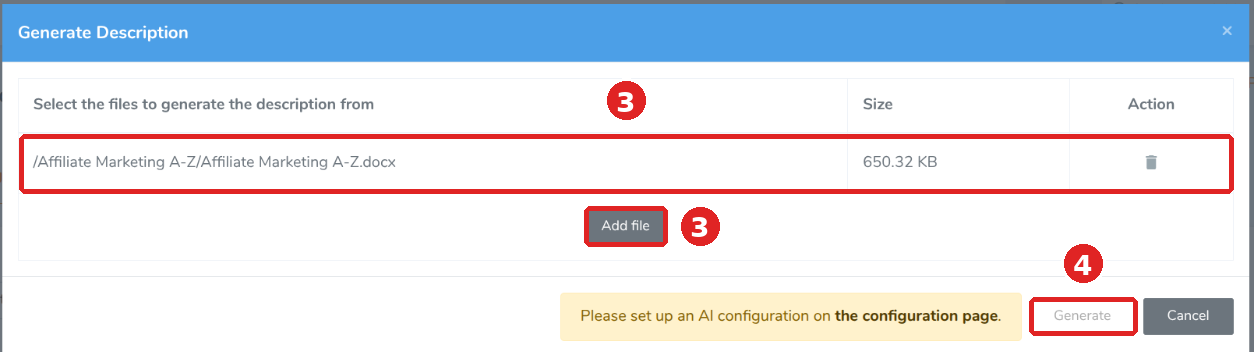
If Generate is greyed out
If the window says "Please set up an AI configuration" and Generate is greyed out, the AI writer isn't set up yet. Set it up in the dashboard's settings: see "Change how the AI writes" below.
It can write the long description, the short description, and the meta title and description for search engines.
Use the Draft Area
Click Open Draft Area to work on text in a separate space first, then copy what you like into the description.
Improve text you already have
- In the Product Description (or Short Description) editor, select some text, or click inside it.
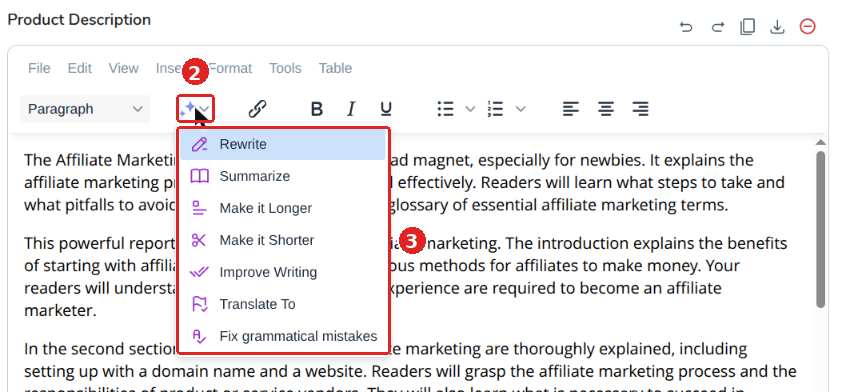
- Click the AI button (✨) in the editor's toolbar.
- Choose:
- Rewrite: say it in a different way
- Summarize: make a short summary
- Make it Longer or Make it Shorter
- Improve Writing: clearer and smoother
- Translate To: into another language
- Fix grammatical mistakes
- Check the result and click Save.
Change how the AI writes (optional)
You can fine-tune the instructions the AI follows. In the dashboard, open Settings → Global settings. Two tabs control the AI:
- AI Text Editor: for the ✨ menu (Rewrite, Summarize and so on)
- AI Description Generator: for Generate description
On each tab:
- Select AI: choose the AI model to use.
- System Prompt: the general instructions, for example how long the description should be and that it should include a list of benefits. The ready-made prompt works well; change it only if you want a different style.
- User Prompts: on the AI Text Editor tab, one per action (Rewrite, Summarize, Make longer and so on). On the AI Description Generator tab, one prompt that can include product details through tags:
<product_title>,<product_category>,<license>,<long_description>and<product_keywords>. - Click Save, then Set active.
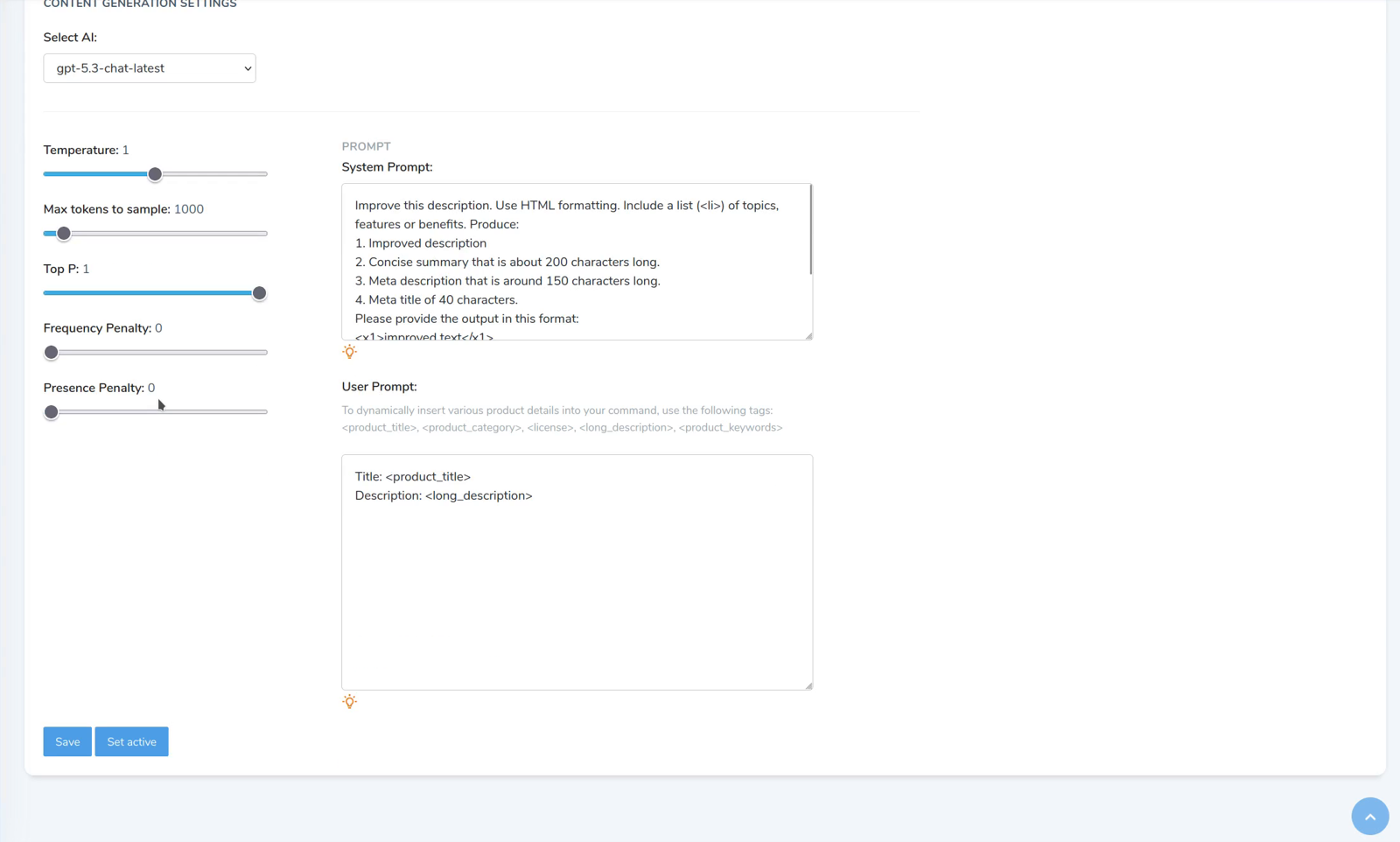
Leave the sliders alone
The sliders (Temperature, Max tokens and so on) control how creative and how long the answers are. The defaults suit most stores.
Good habits
- Always read before you save. AI can get details wrong, such as the number of pages or what's included.
- Don't let it promise things the product doesn't do, or rights it doesn't come with. The product's terms decide what buyers may do. See Product terms.
- Unique descriptions help with Google. Rewriting the descriptions of your best products makes your store stand out from other stores selling the same catalogue.