
Featured, New and Sale tags
Make products stand out with Featured, New and Sale badges. They're added automatically from a product's settings.
Your store can show three badges on products:
| Badge | When it appears |
|---|---|
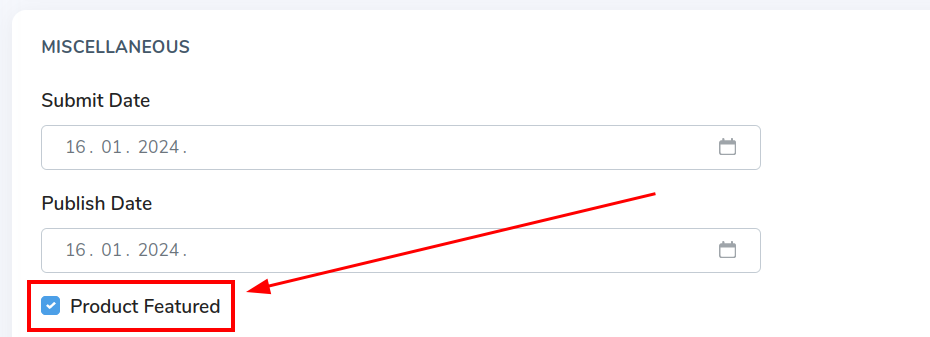
| Featured | The product's Product Featured box is ticked. Featured products are also shown first in lists, before newer products. |
| New | The product's Publish Date is within the last few days. You choose how many. |
| Sale | The product has an Old price higher than its Price. The badge shows the discount as a percentage. |
Add a badge
- In the dashboard, open the product (Products → All products → click the title).
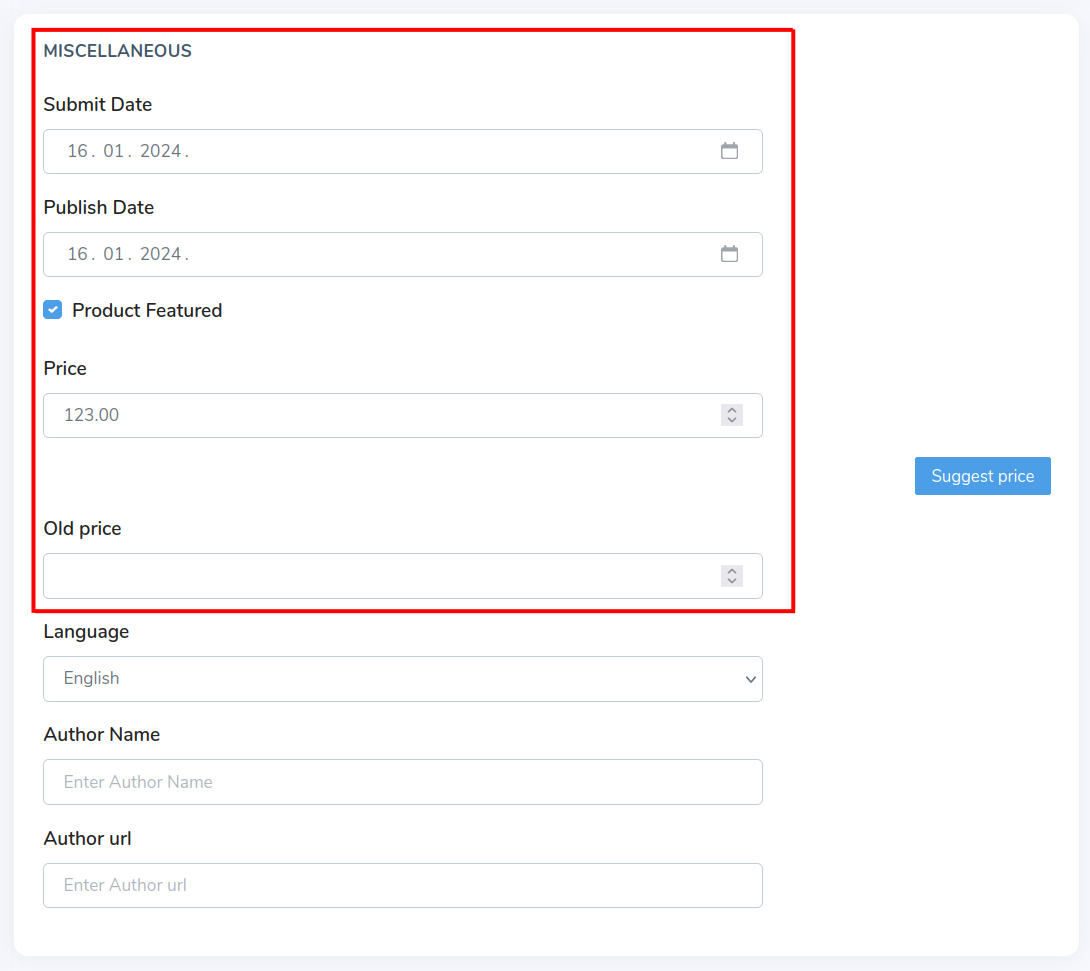
- Scroll down to Miscellaneous.
- Do one or more of these:
- tick Product Featured for the Featured badge
- set Old price higher than Price for the Sale badge
- Click Save.
How long "New" lasts
The New badge shows for a set number of days after the publish date (5 by default). To change it, open Settings → Global settings in the dashboard and change New product treshold days on the Basic settings tab. See Global settings.
Move the badges
Badges appear above the product title by default. To show them somewhere else, for example on top of the cover, you edit the layout. See Layout recipes.