
Previews and sales pages
Let customers look inside a product before they download it, and show them the sales page that came with it. Both are made for you in one click.
Previews help customers decide, and sales pages do the selling for you. All included products already have them where possible. For your own products, you make them in one click.
Previews
The Preview creator makes a preview tree of the product's files. Customers see it in the Preview tab on the product page.
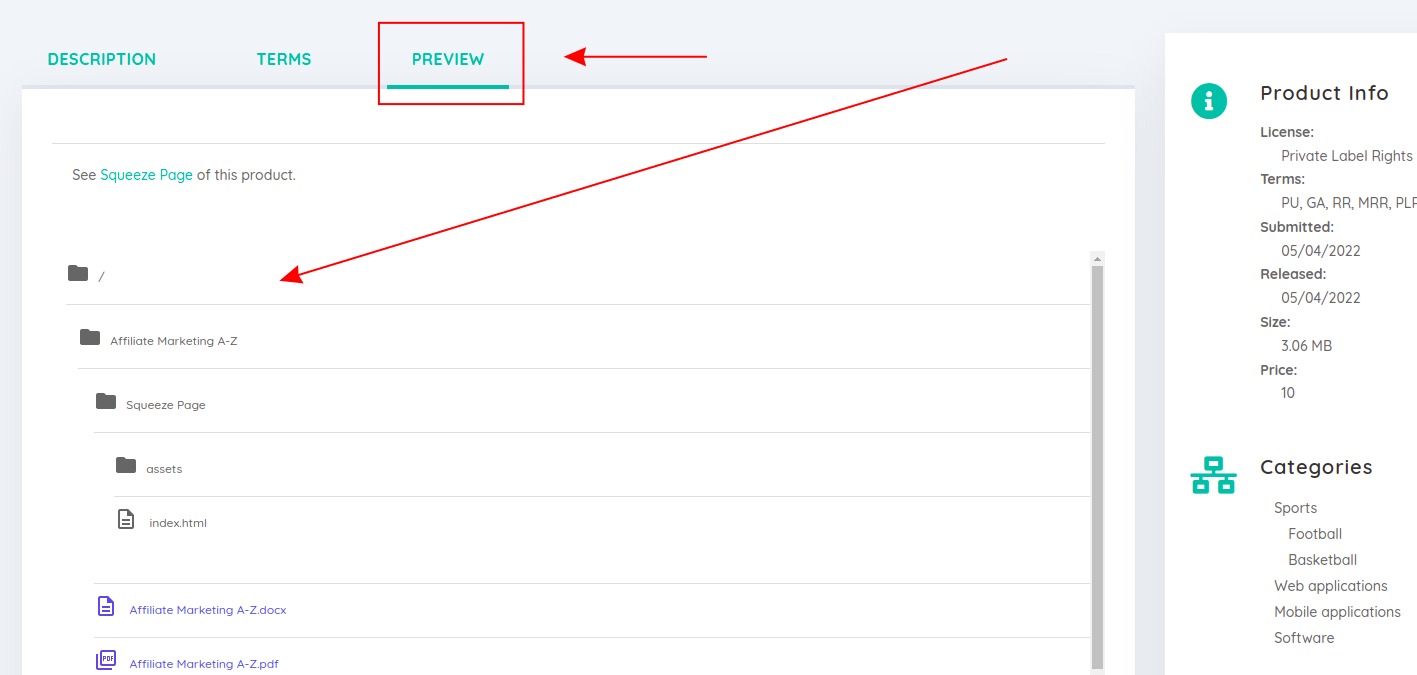
| File type | What the preview shows |
|---|---|
| PDF, Word (doc, docx) | The first five pages, as images |
| Text (txt) | The first two pages, as images |
| Images | The image itself |
| Audio (mp3) | The first 20 seconds |
| Video (mp4, avi, wmv, mov, flv) | The first 20 seconds |
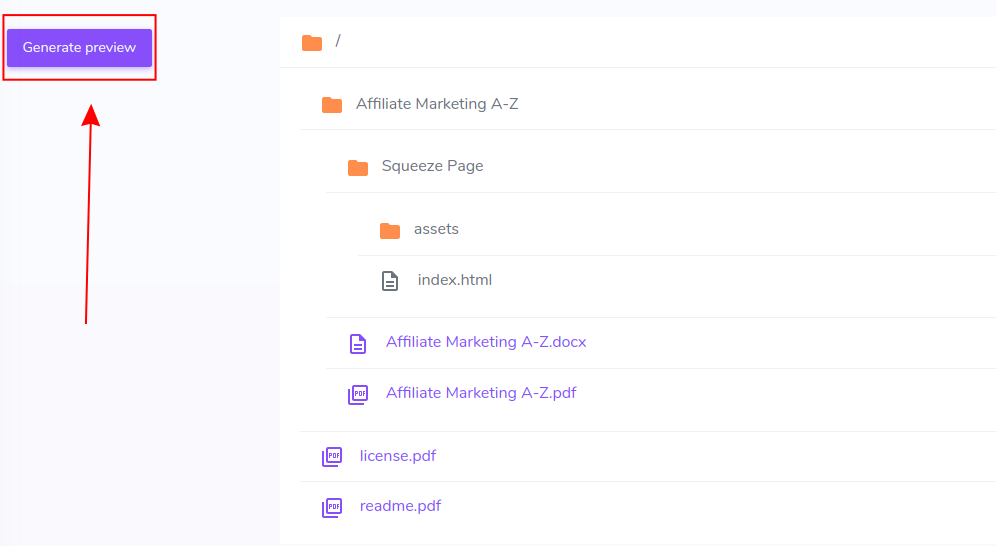
To make a preview:
- In the dashboard, open the product (Products → All products → click the title).
- Open the Preview Creator tab.
- Click Generate preview.
Who can see previews
Previews are shown only to customers whose plan allows it. You choose that in Who can download what, in the Can preview products column.
Sales pages
Many products come with a ready-made sales page or squeeze page inside the zip. The HTML extractor finds them, extracts them and links them from the product page, so customers can see the page they'll be able to use.
Extracted sales pages are visible to everyone, whatever their plan.

To extract the sales pages:
- Open the product and the HTML Extractor tab.
- Click Generate HTML.
- Each page found appears as a link. To hide one, click the small minus button at its top right.

Check it worked
Open the product in your store. The Preview tab should show the files, and the sales page link should open the page.