
Product page layouts
Change how products are laid out on product pages, listing pages, search results and sidebars. Pick a ready-made layout in one click, or edit its code.
Mostly point-and-click
Switching between the ready-made layouts and hiding information are simple. Editing a layout's code needs some HTML and CSS; skip that part if it's new to you.
The five layout areas
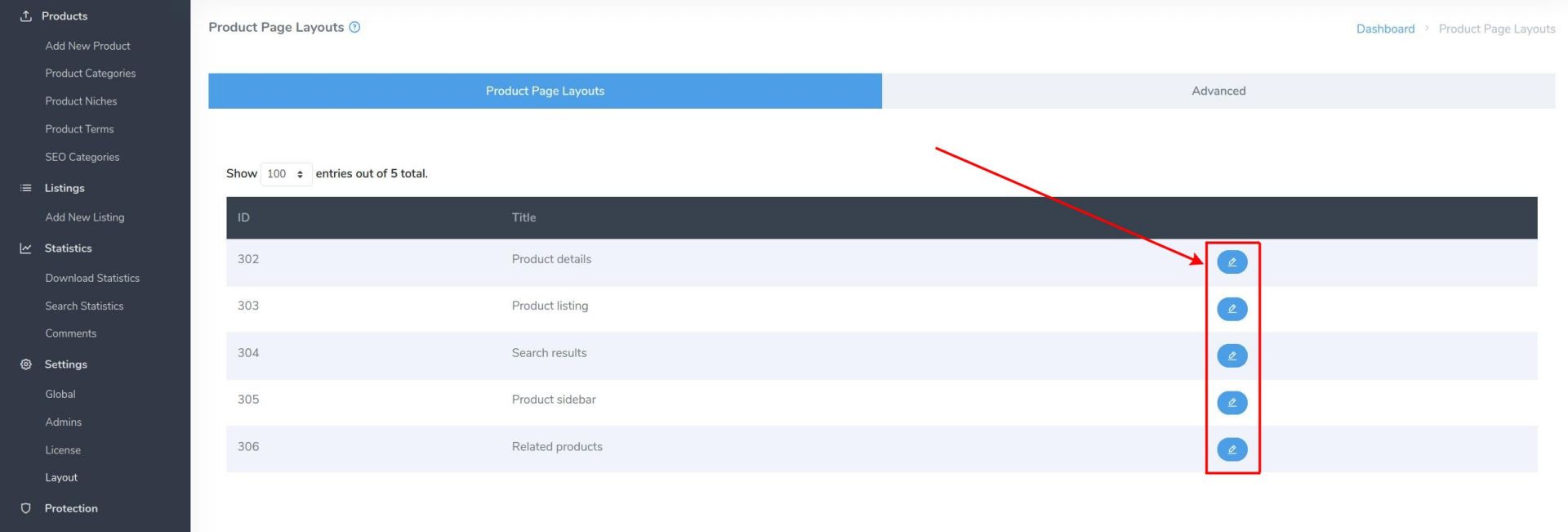
Every page that shows products has its own layout area:
| Layout area | Controls |
|---|---|
| Product details | Each product's own page |
| Product listing | Your listing pages |
| Search results | The search results page |
| Product sidebar | Lists of products in sidebars |
| Related products | The products shown under a product, on its page |
Open a layout area
- In the dashboard (
plr.pub), click Settings → Layout. - Click the pencil icon next to the layout area you want.
Switch to another layout
Each area has several ready-made layouts (listing pages have five).
- Choose a layout from the drop-down at the top.
- Look at it in the Preview tab.
- Click Set as default to use it across your store.

Next to the drop-down are Rename and Delete, and on the right Add new layout to create your own. Open your store in another tab to see the result: the first video switches the product page between layouts and shows each one in the store.
One listing page, a different layout
A single listing page can use its own layout. Edit the listing page (Listings → All listings → edit icon) and choose it under Listing page layout. The ready-made Latest products (homepage) listing works this way. See Create a listing page and add it to your menu.
The four tabs
Each layout has four tabs. Changes apply only to the layout that's selected, so you can keep several versions and switch between them.
| Tab | What it's for |
|---|---|
| Preview | See the layout as you change it |
| Visible information | Show or hide parts, such as the price, the short description or the author. No code needed. |
| CSS | Add your own styles to this layout only |
| Edit code | Rearrange the layout's parts or add your own HTML. Needs some HTML/CSS (the layout uses Bootstrap). |

Make a copy before editing code
Before changing a layout's code, add a new layout and work on that one. If something breaks, switch back to the original with Set as default.
Next
Ready-made code changes, such as a vertical gallery or a preview in a popup: Layout recipes.