
Edit your homepage and other pages
Change the text and pictures on your homepage, terms of service, contact page and other pages, using Divi's visual editor.
Your store's pages (the homepage, terms of service, contact page and so on) are normal WordPress pages. You edit them with Divi, a visual editor: you click on what you want to change, right on the page.
Product pages are different
The product pages and the lists of products are made automatically from the products in your dashboard. To change a product's title, description or picture, see Every product field explained. To change how products are laid out, see Product page layouts.
Open a page in Divi
- Log in to WordPress (
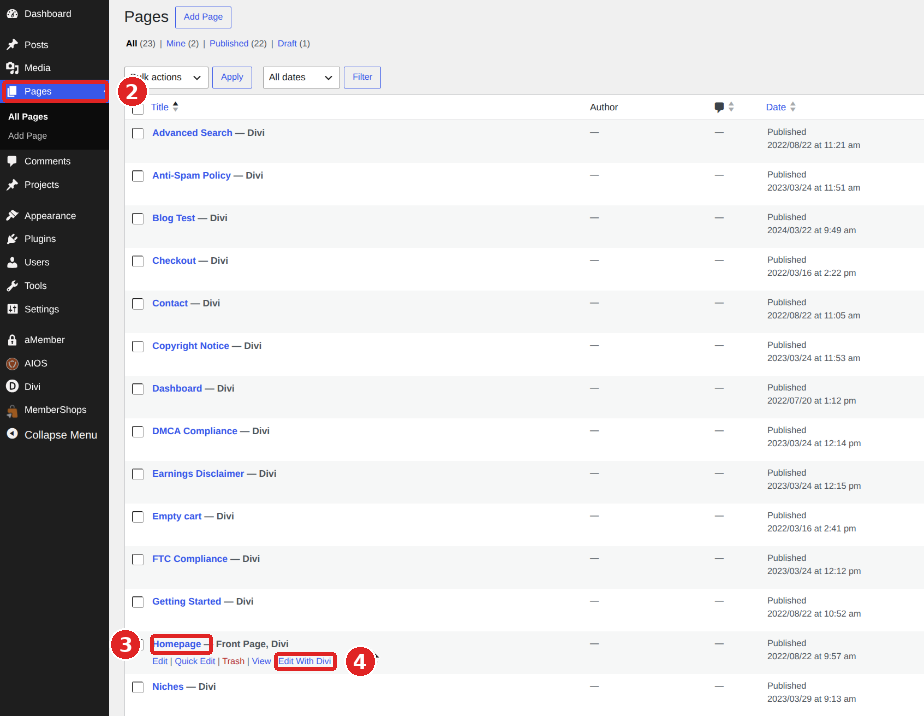
your-domain.com/wp-admin). - In the left menu, click Pages. You'll see a list of every page in your store.
- Move your mouse over the page you want (for example Homepage). A few links appear under its name.
- Click Edit With Divi.
The page opens as it looks on your store, ready to edit.
Change text
- Click on the text you want to change. A cursor appears.
- Type your new text. You can make words bold or add links with the small toolbar that appears.
Change a picture
- Click the picture. Its settings open in the panel at the side.
- Under Image, hover over the picture and click to replace it: upload a new one or choose one from your media library.
Save
Click Save at the top right of the editor. Your changes are live straight away. Click Exit next to it to leave the editor.
Pages you should check before launch
- Homepage: your main message, in your own words. Who is your store for, and why should they join?
- Terms of service: your rules for customers. Make sure they match your plans, prices and refund policy.
- Contact: your own email or contact form, and your business details.
- Pricing: shows your plans. See Sign-up pages, Buy Now links and the Pricing page.
Write your own terms
The terms that come with your store are a starting point. You're responsible for your own terms of service, privacy and refund policies. If you're unsure, ask a local professional.
Check it worked
Open the page on your store in a new tab and refresh. Look at it on your phone too: Divi pages adapt to small screens, but long words and big pictures are worth a check.
If something goes wrong
- I can't find "Edit With Divi": open the page with the normal Edit link, then click the Use Divi Builder or Edit With The Divi Builder button at the top.
- The page looks broken after my change: press
Ctrl+Z(Cmd+Zon a Mac) to undo, step by step. If you haven't saved yet, you can also click Exit and leave without saving.