
Product terms
Terms are the YES/NO list of what a buyer may do with a product. They go into the license file in every download. Here's how they work and how to manage terms for your own products.
What terms are
Each product has a list of rights, such as "Can be sold" or "Can be given away for free". Each one is either granted (YES) or not (NO). Together they're the product's terms. They appear:
- in the license file inside every download (see Brand your license and readme files)
- on the product page, in the Terms tab
- in search, so customers can find products with the rights they need
The terms in your store
Your store comes with 19 terms. Some have a short name, which shows the license type they belong to:
| Term | Short name |
|---|---|
| Can be used for personal use | PU |
| Can be sold | RR |
| Can convey and sell Personal Use Rights | RR |
| Can convey and sell Resale Rights | MRR |
| Can convey and sell Master Resale Rights | MRR |
| Can modify/change the main product | PLR |
| Can convey and sell Private Label Rights | PLR |
| Can be offered as a bonus | GA |
| Can be used to build a list | GA |
| Can be given away for free | GA |
| Can be packaged with other products | |
| Can modify/change the sales letter | |
| Can modify/change the graphics and ecover | |
| Can put your name on the sales letter | |
| Can be added into paid membership websites | |
| Can be added to free membership websites | |
| Can print/publish offline | |
| Can be translated to other languages | |
| Can be added to shops/memberships containing more than 500 products |
GA = giveaway rights.
To see them: Products → Product Terms. The list also shows how many of your own and included products use each term.
You can't change the terms of the included products
The terms of the 12,000+ included products come from their licenses, and the dashboard won't let you change them. You manage terms only for products you add yourself. See Store rules: resale rights and minimum prices.
Give your own product its terms
- Open your product and find Terms on the Product details tab.
- Tick each right your customers get. Anything you don't tick shows as NO in the license.
- Click Save.
Create a new term
If none of the 19 terms describes a right you want to grant or refuse, create your own.
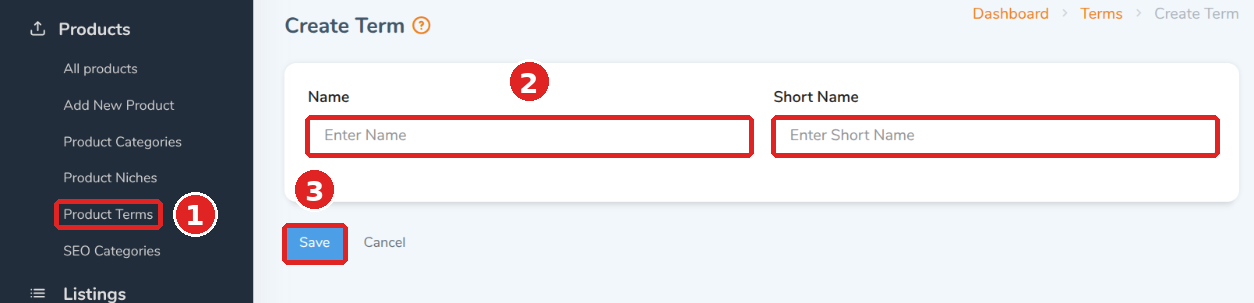
- Products → Product Terms → New term.
- Enter the Name (written as a right, for example "Can be used in client projects") and, if you like, a Short Name.
- Click Save. Back in the list, make sure the term is Published.
Change a term everywhere at once
Editing a term's name on the Product Terms page changes it on every product that uses it, and in every license from then on. Only do this for terms you created yourself.
How customers search by terms
In your store's advanced search, customers can filter by terms, for example "only products I can give away for free".