
Comments and ratings
Customers can leave comments and ratings on products. Read and remove them, and decide who can comment.
Comments and ratings help new customers choose, and tell you what people think of your products.
Read comments
- In the dashboard (
plr.pub), click Statistics → Comments. - Each row is a product, with its unread and total comments.
- Click View to read a product's comments and remove any you don't want.
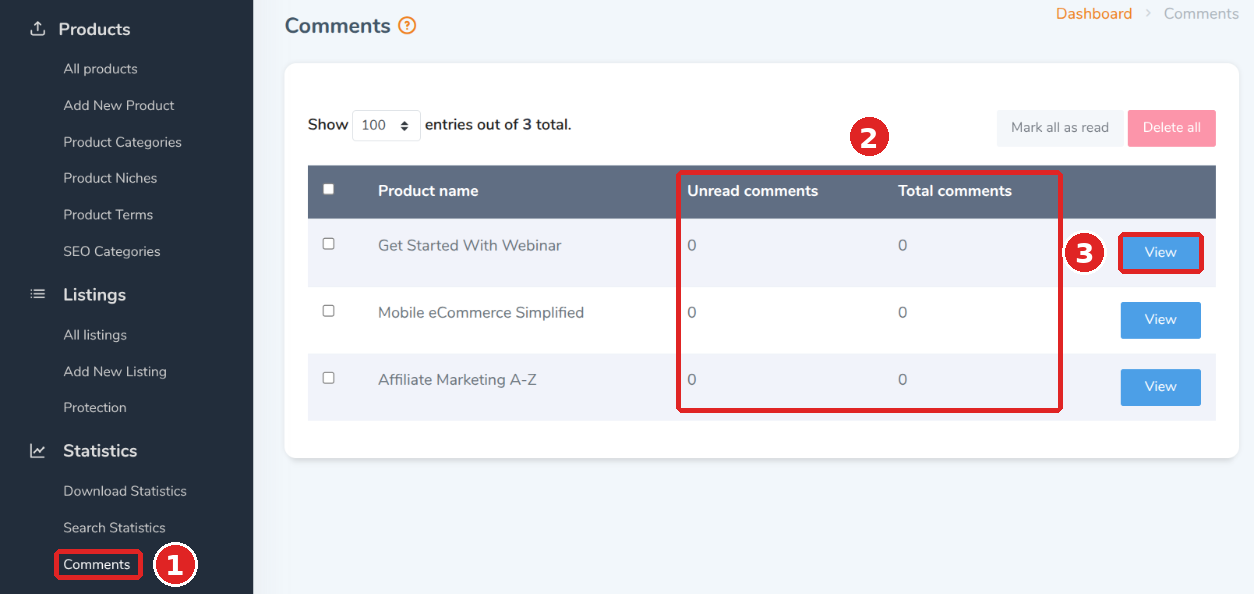
Use Mark all as read when you've caught up, or Delete all to clear every comment.
The dashboard home also shows the latest comments.
Decide who can comment
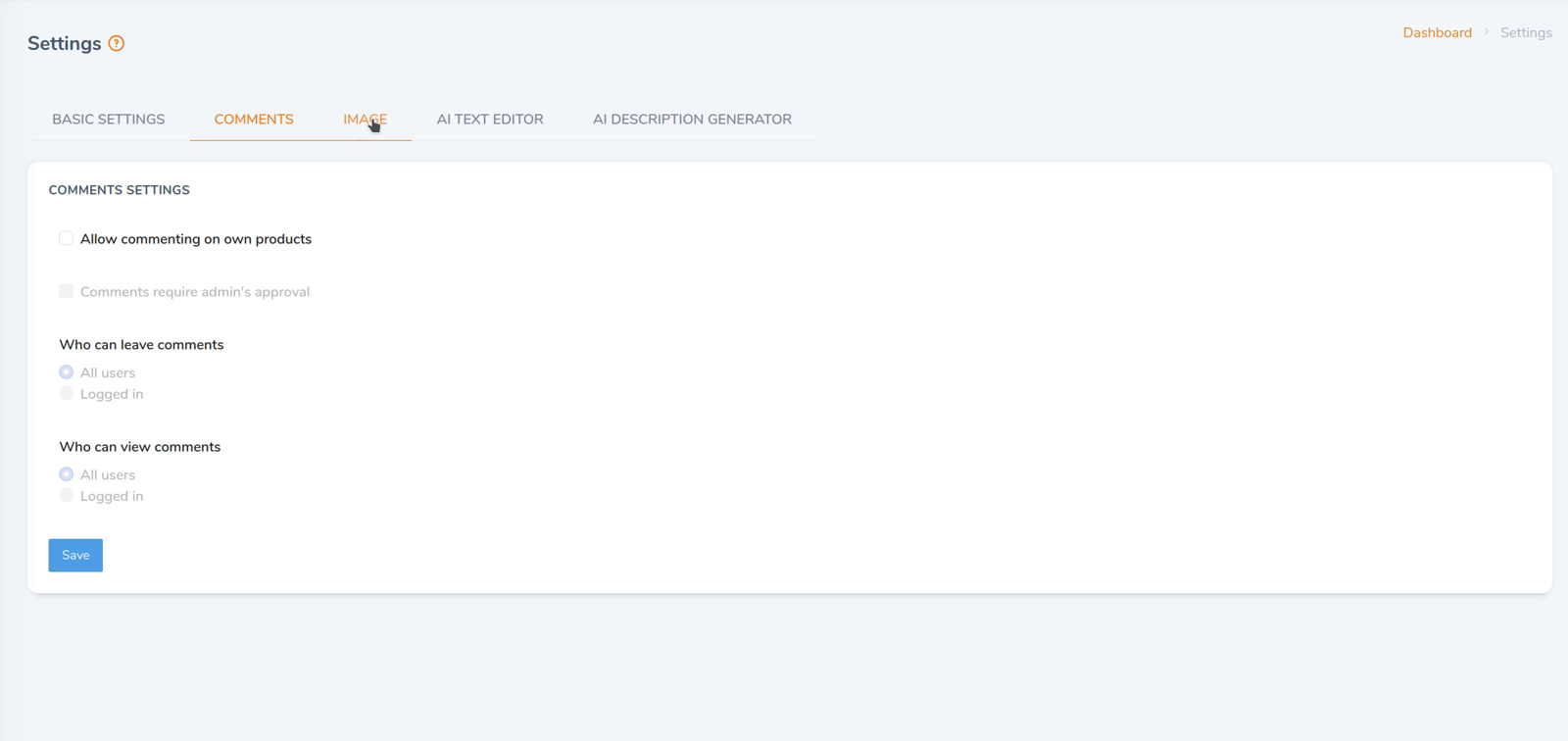
- In the dashboard, click Settings → Global settings, then the Comments tab.
- Choose:
- Allow commenting on own products: comments on products you added yourself
- Comments require admin's approval: comments appear only after you approve them
- Who can leave comments: All users or only Logged in customers
- Who can view comments: All users or only Logged in customers
- Click Save.
Avoid spam
Letting only logged-in customers comment keeps spam away.
Report a problem
Customers can also use report a problem on a product to tell you about a broken file. Fix your own products with the File manager; for included products, pass it on to us with the Report a problem button on the product's edit page. See Every product field explained.