
Who can download what
Decide what each membership plan can download and preview, and set download limits. For example, free members get only free products, and paid members get everything.
Before you start: Your membership plans set up in aMember. See Set up your membership plans and prices.
Protection is where you connect your aMember plans to your products. For each plan you choose:
- what it can download: everything, nothing, or only the products on certain listing pages
- what it can preview: the same choices
- its limits: how many downloads in total, per day, and how many previews
Open Protection
- Log in to the MemberShops dashboard (
plr.pub). - In the left menu, click Listings → Protection.
- Click Fetch memberships. This copies your current plans from aMember. Do it again whenever you add, rename or remove a plan.
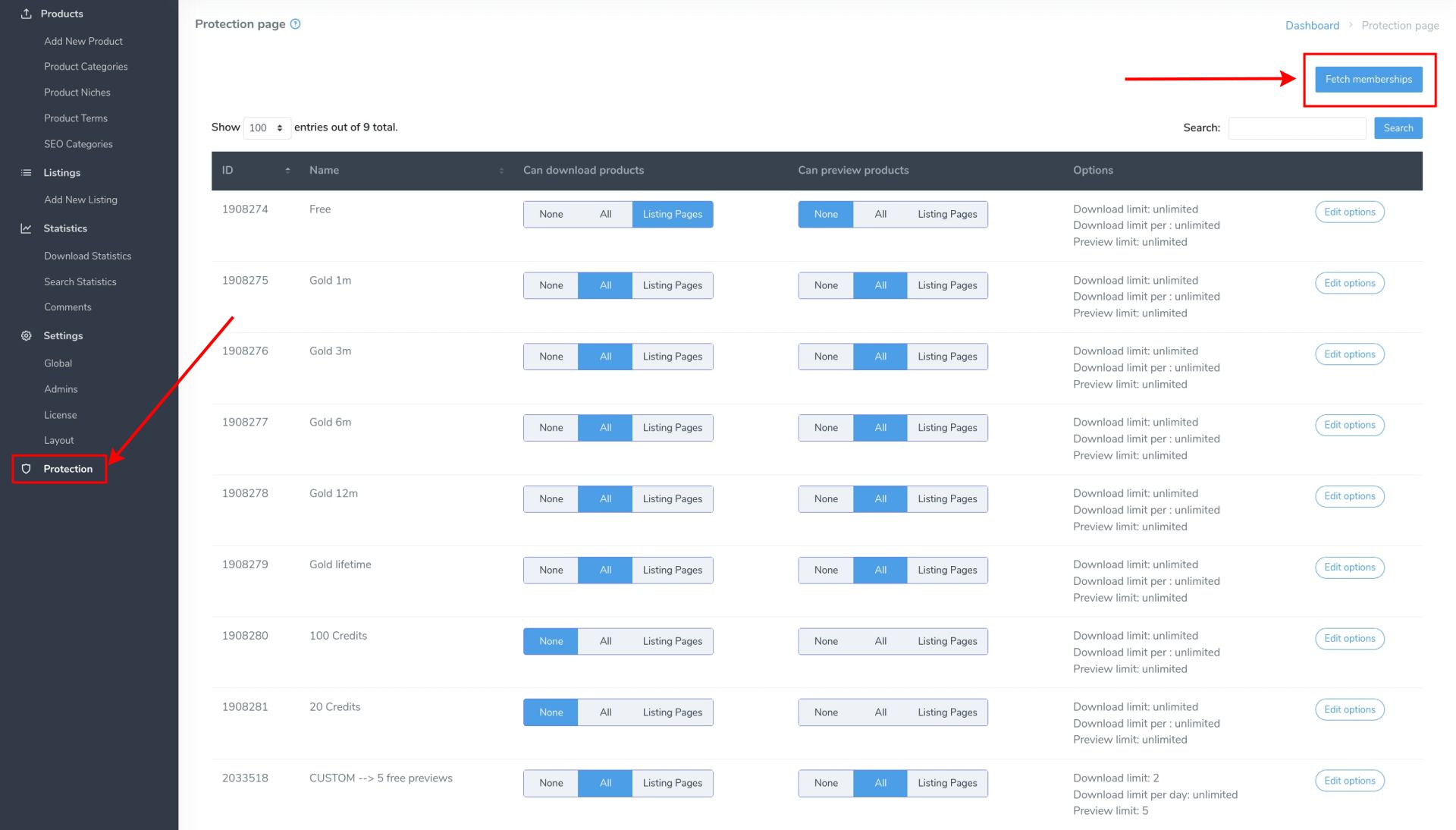
Each plan has a row with three columns: Can download products, Can preview products and Options.
New plans and credit packs
- A plan you've just created in aMember starts with None: it can't download anything until you choose what it can access here.
- Your credit packs (100 Credits and 20 Credits) appear in the list too. Leave them on None: credits are spent product by product, not through Protection.
Choose what a plan can download
In the Can download products column, click one of:
- None: the plan can't download anything.
- All: the plan can download every product.
- Listing Pages: the plan can download only the products on the listing pages you choose. A window opens: tick the listing pages and click Ok.
Do the same in the Can preview products column. Previews let customers look inside a product (the first pages of an eBook, the first seconds of a video) before downloading. See Previews and sales pages.
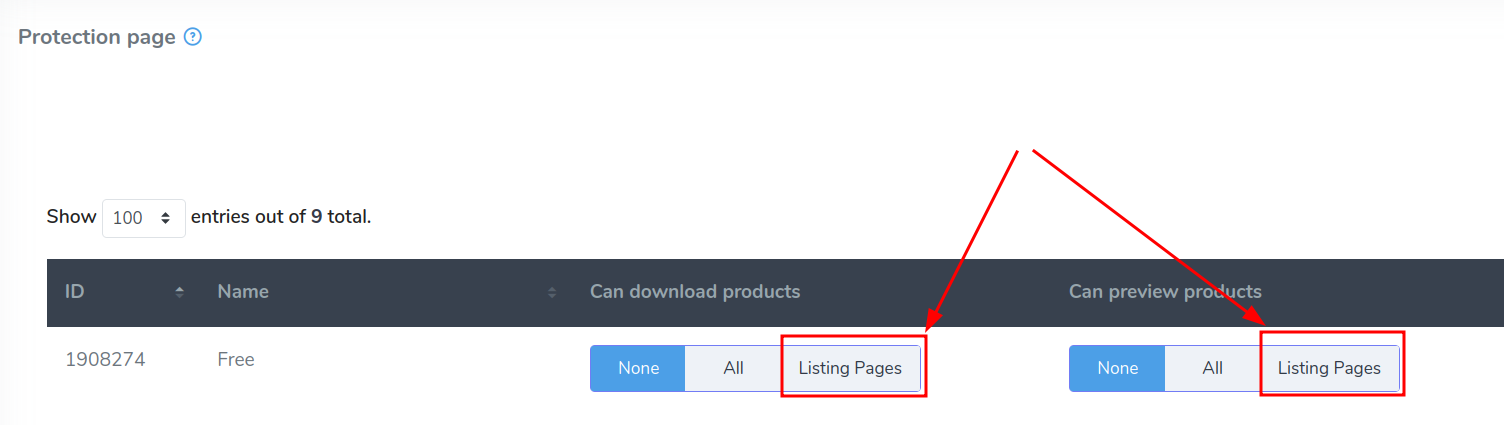
Example from the video: a plan for one listing page
The video creates a new plan in aMember ("My Custom Membership"), clicks Fetch memberships, and sets the new plan to Listing Pages with only My Custom Listing (PLR Products) ticked. Members of that plan can download only the PLR products on that page.
A common setup
- Free: download and preview only the Free products listing page.
- Paid plans: download and preview All.
Free members get a taste of your store, and a reason to upgrade.
Set download limits
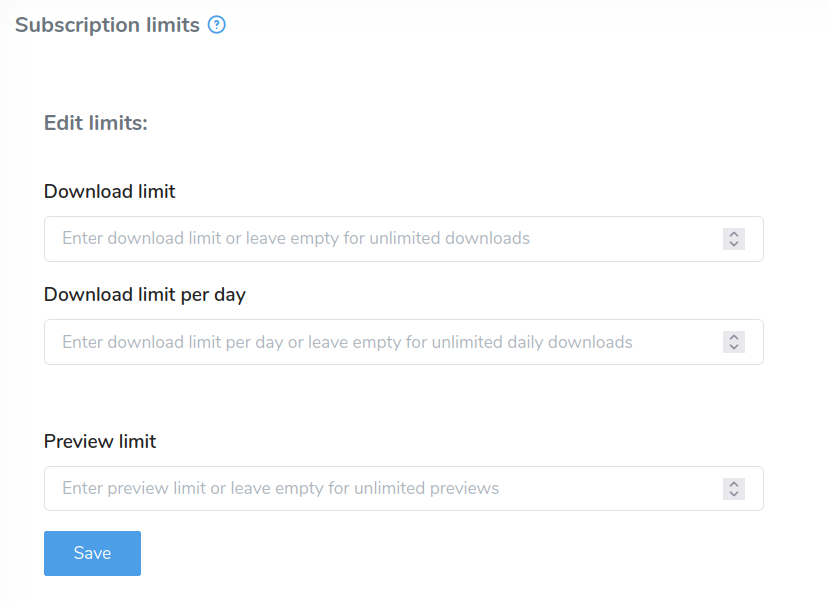
- In the plan's row, click Edit options.
- Set:
- Download limit: the total number of downloads for the whole membership.
- Download limit per day: the most downloads in one day.
- Preview limit: the most previews.
- Leave a field empty for unlimited.
- Save.
When a customer reaches a limit, they see a message saying so, and can download again when the limit resets (for the daily limit) or when they upgrade.
The default limits
Your ready-made plans come with unlimited downloads, a limit of 250 downloads a day and unlimited previews. The daily limit protects your store from someone downloading the whole catalogue in one go.
Check it worked
As a test customer on each plan, try to download a product that should be allowed, and one that shouldn't. See Test your store as a customer.
If something goes wrong
- A plan is missing from the list: click Fetch memberships again.
- Free members can download everything: check that the Free plan is set to Listing Pages (or None), not All.
- A customer says the limit is reached too soon: check the plan's Download limit per day and Download limit in Edit options.