
Find, filter and bulk-edit products
Search your catalogue, filter it down to exactly the products you want, and change hundreds of them at once.
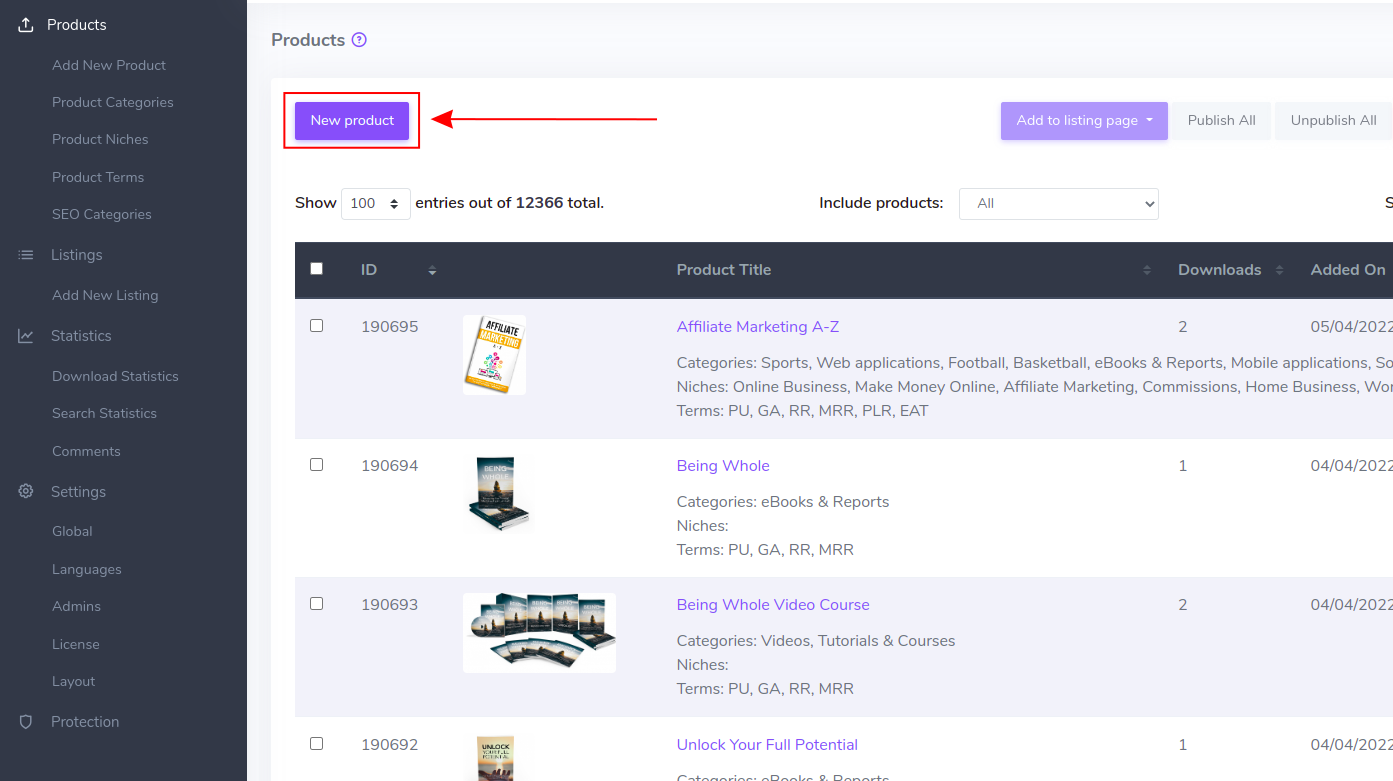
Open the product list
- Log in to the MemberShops dashboard (
plr.pub). - Click Products → All products.
Each row shows the product's cover, title, categories, niches and terms, plus its downloads, dates, size, price and whether it's Published (visible in your store).
Search
- Search box: type a word from the title, then click Search.
- Status: show only Published or Unpublished products.
- Include products: MemberShops (included products), Own (yours) or All.
Advanced search
Click Advanced for more filters:
- The exact phrase, searched in title and/or in description
- Date from / to: when the product was added
- Has minisite: only products that come with a sales page
- Add filter: filter by category, niche, term, price and more
Find a niche fast
To see every cooking eBook, add a filter for the category eBooks & Reports and the niche Diet & Cooking.
Edit one product
Click the product's title or its pencil icon. See Every product field explained for what each field does.
To hide a product from your store without deleting it, switch off its Published toggle in the list.
Change many products at once
- Tick the products you want to change. To select every product on the page, tick the box in the header row. To select every product that matches your search, click Select all … records in the message that appears.
- Choose what to do:
- Publish All or Unpublish All: show or hide them in your store
- Delete all: move them to the Trash
- Bulk assignments: Assign category, Remove category, Assign niche, Remove niche, Assign term, Remove term, Set SEO category or Set price
- Add to listing page: put them on one of your listing pages
Terms of the included products are locked
Assign term and Remove term are for products you added yourself. The terms of the included products come from their licenses, so the dashboard won't let you change them: you'll see an error message if you try. See Store rules: resale rights and minimum prices.
Change prices in bulk
- Filter the products, for example all videos.
- Select them all.
- Bulk assignments → Set price, and enter the new price in credits.
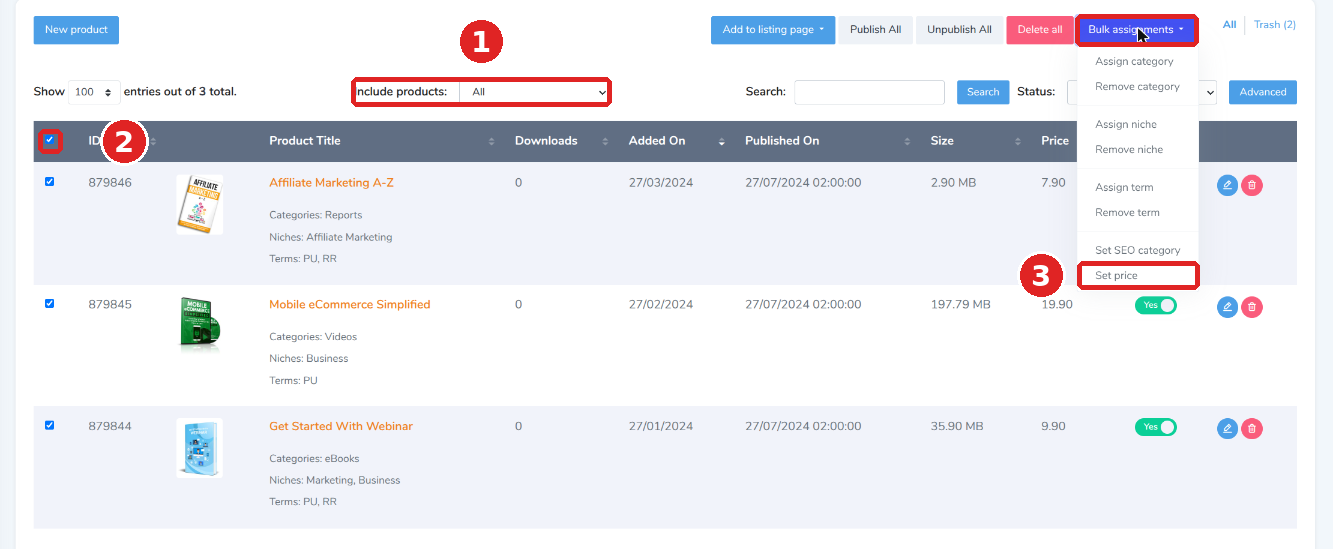
Keep the minimum prices in mind: $1 per eBook and $2 per product with video or audio. See Store rules: resale rights and minimum prices.
Deleted something by mistake?
Deleted products go to the Trash first. Click Trash at the top right of the list to see them and restore them.