
Edit your menus
Add, remove and reorder the links in your store's menus, including your listing pages and your own pages.
Your store's menus (the links in the header, and the category and niche lists in the footer) are normal WordPress menus. You change them in one place.
Open your menus
- Log in to WordPress (
your-domain.com/wp-admin). - Click Appearance → Menus.
- At the top, choose the menu you want to edit from Select a menu to edit, then click Select.
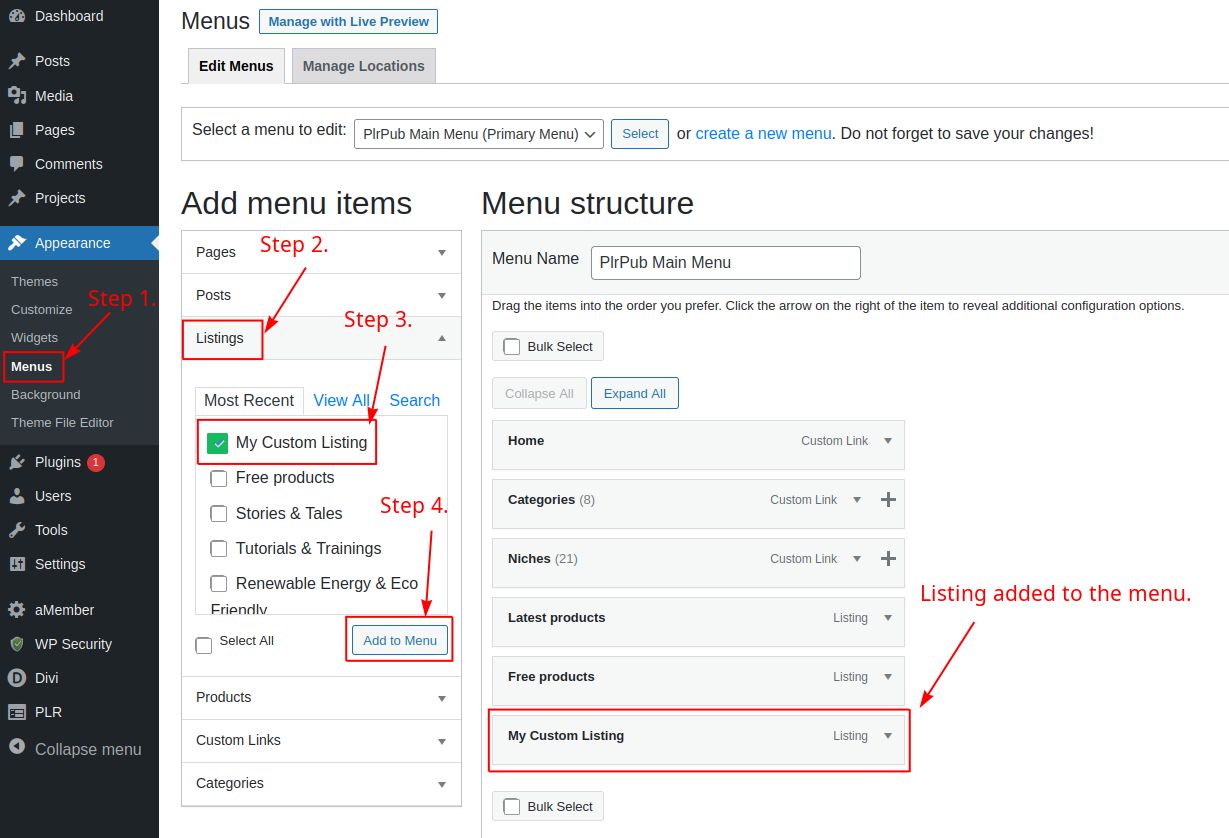
Add a link
On the left you'll see boxes for Pages, Listings, Custom Links and more.
- A listing page: open Listings, tick it, click Add to Menu.
- A normal page (for example Contact): open Pages, tick it, click Add to Menu.
- Any web address (for example your blog or a social page): open Custom Links, paste the address, type the link text, click Add to Menu.
New items are added at the bottom of the menu.
Reorder and nest
- Drag items up and down to change their order.
- Drag an item slightly to the right, under another item, to make it a sub-item. It will appear in a drop-down under its parent, like the categories under Categories.
Rename or remove
Click the small arrow on the right of a menu item to open it. Change the Navigation Label to rename it, or click Remove to take it out of the menu. Removing a link doesn't delete the page.
Save
Click Save Menu. Changes don't appear in your store until you do.
Keep the menu short
A short header menu is easier to use, especially on phones. Group listing pages under a few headings, such as Categories and Niches, instead of listing them all at the top.
Check it worked
Open your store and refresh, on your computer and on your phone. On phones, the menu is behind the menu button (☰).
If something goes wrong
- My change doesn't show: check you clicked Save Menu, then refresh the store while holding Shift.
- I edited the wrong menu: your store has several menus. Use Select a menu to edit to check which one you're in. The Menu Settings at the bottom show where each menu appears.