
Your three logins
Your store has three admin areas, each with its own address and login. Bookmark all three.
After installation you'll receive a login for each of the three parts of your store. In the addresses below, replace your-domain.com with your own domain. For example, if your domain is myplrstore.com, the aMember address is https://myplrstore.com/members/admin.
| Part | Address | What it's for |
|---|---|---|
| MemberShops dashboard | https://plr.pub/login |
Products, listing pages, who can download what, license file, statistics |
| WordPress | https://your-domain.com/wp-admin |
Pages, design, menus, logo, header and footer |
| aMember | https://your-domain.com/members/admin |
Customers, plans, payments, invoices, help desk, affiliates |
Bookmark them now
Open each address once and save it as a bookmark (in most browsers: press Ctrl + D, or Cmd + D on a Mac). Put the three bookmarks in a folder called "My store".
The MemberShops dashboard
- Go to
https://plr.pub/login. - Enter the username and password we sent you, then click Log in.
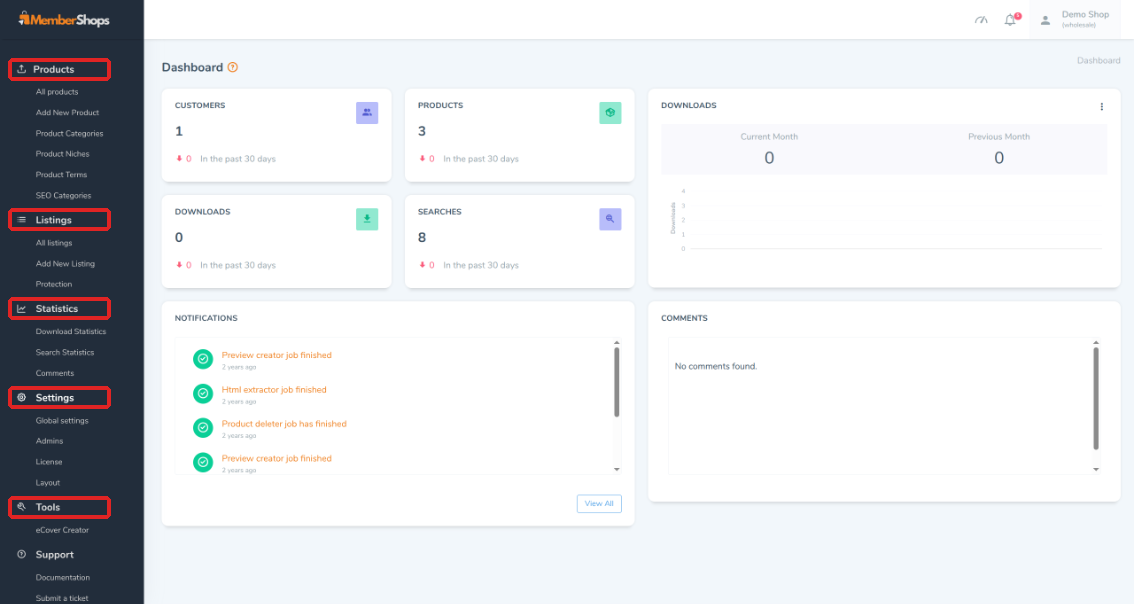
- You'll see the dashboard: the menu on the left, and totals for customers, products, downloads and searches.
WordPress
- Go to
https://your-domain.com/wp-admin. - Enter your WordPress username and password, then click Log In.
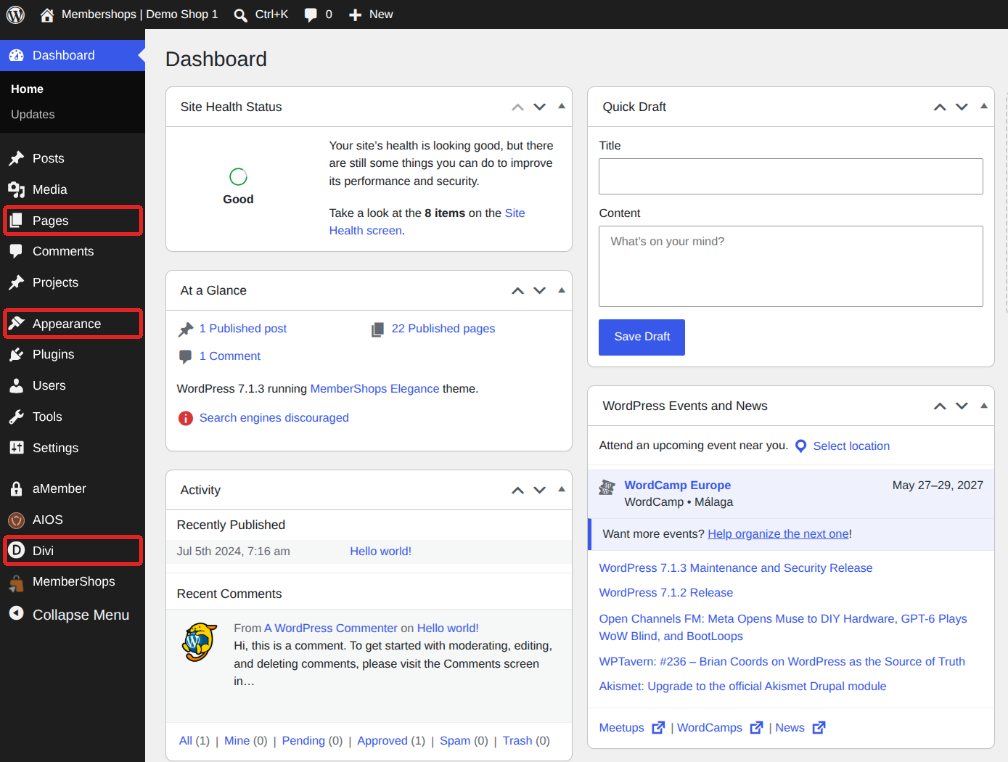
- You'll see the WordPress admin, with its menu on the left (Pages, Appearance, Divi and so on).
aMember
- Go to
https://your-domain.com/members/admin. - Enter your aMember admin username and password, then click Login.
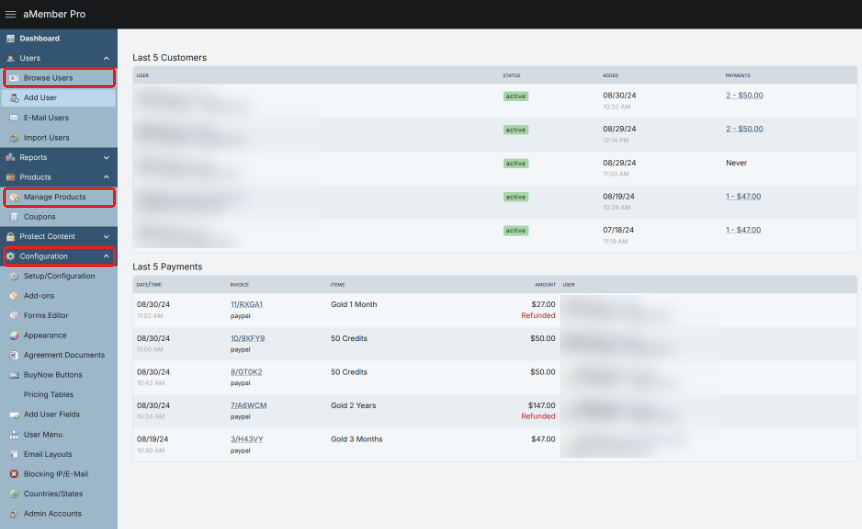
- You'll see the aMember admin, with Users, Products, Configuration and Reports in the menu.
Manage customers only in aMember
Customers also appear in WordPress, under Users. Don't edit or delete them there: it gets out of step with aMember. Always manage customers in aMember. See Find and edit a customer.
Your customers' login is different
Your customers never see these admin areas. They log in at https://your-domain.com/members/login, using the Login button in your store's header. See The pages your customers use.
Forgot a password?
- WordPress: on the login page, click Lost your password? and follow the email.
- aMember: on the admin login page, use the password reset link and follow the email.
- MemberShops dashboard: on the login page, click Forgot your password? and follow the email.
Keep your logins safe
- Use a different, strong password for each one. A password manager makes this easy.
- Don't share your own login with helpers. Give them their own account with limited permissions: see Staff accounts.