
Search and search statistics
How customers search your store, and how to see what they search for, so you know what to promote.
How customers search
Every page of your store has a search box in the header. Customers type a word and press Enter (or click Search) to see all the matching products.
Next to it, Advanced search lets them narrow the results by:
- category (eBooks, videos…)
- niche (marketing, health…)
- terms, for example only products they may give away for free
- price
The search results page uses its own layout, which you can change like the product and listing pages. See Product page layouts.
See what customers search for
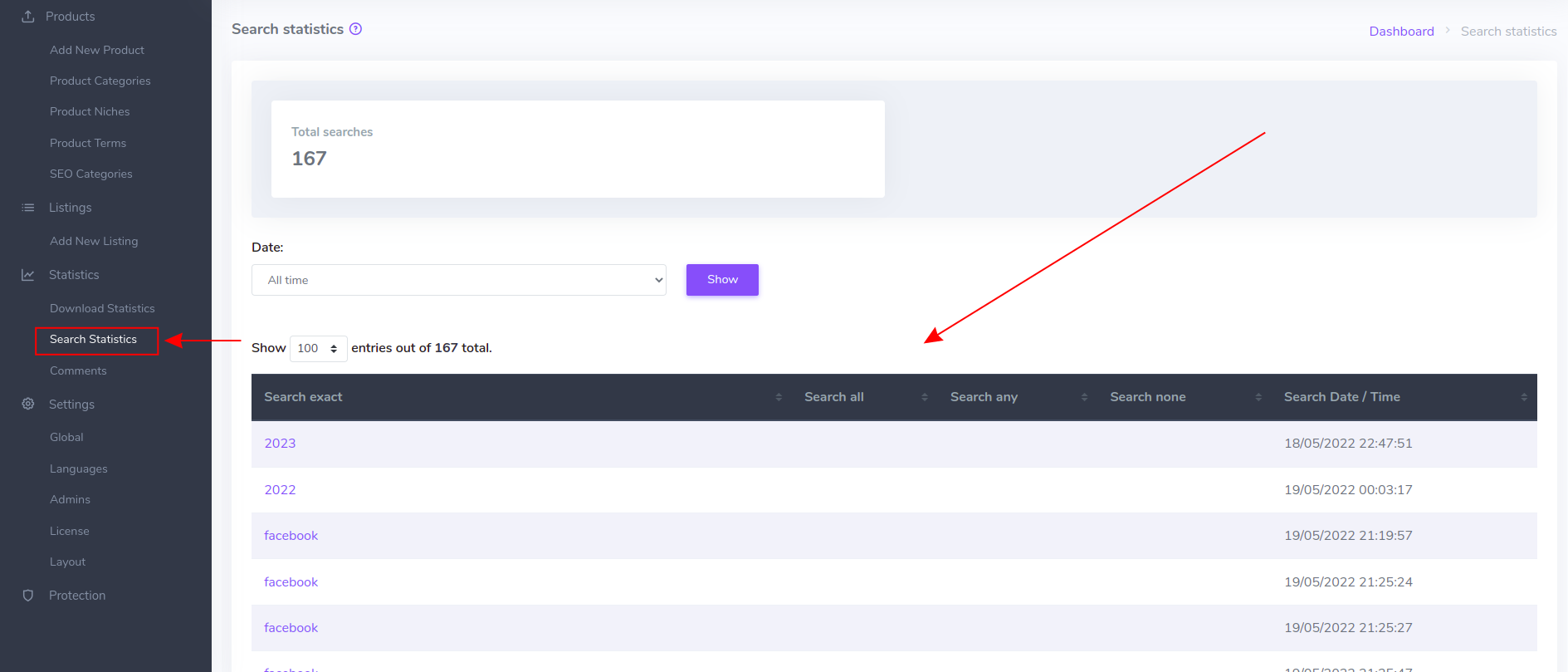
- In the dashboard, click Statistics → Search Statistics.
- At the top you'll see the total number of searches, and how many happened in the last 30 days.
- Choose a period (Today, Yesterday, Last 7 days, Last 14 days, Last 365 days or All time) and click Show.
The table lists every search with its date and time.
Use what you learn
- Popular searches show what your customers want. Make a listing page for them and add it to your menu. See Create a listing page and add it to your menu.
- Searches with few or no results show gaps. Consider adding your own products on that topic. See Add your own product.
- Seasonal searches (for example "Christmas" or "new year") tell you what to feature when.