
Connect PayPal
Connect your PayPal account so customers can pay you through PayPal. You switch PayPal on in aMember, then copy three API details from PayPal into it.
Before you start: A PayPal Business account (a personal account can be upgraded for free), and your aMember admin login.
The video shows the whole process, including a test purchase. The written steps follow the same order.
1. Switch on PayPal in aMember
- Log in to aMember (
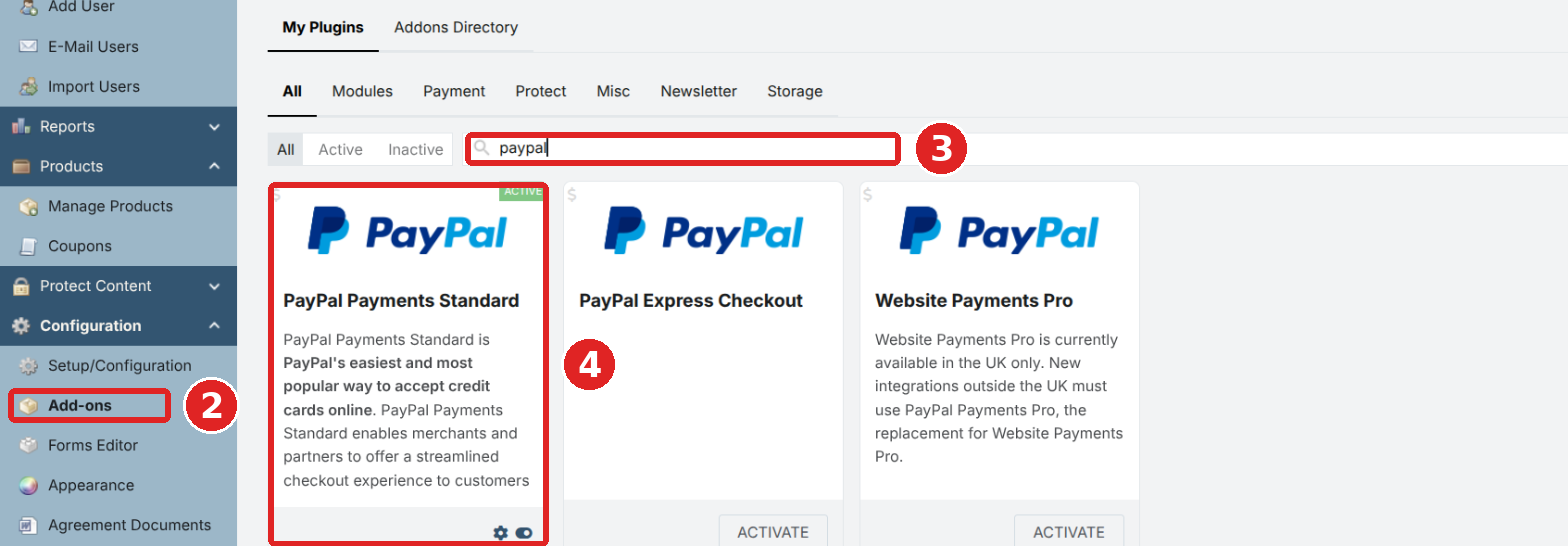
your-domain.com/members/admin). - In the left menu, click Configuration → Add-ons.
- In the search box, type
paypal. You'll see a few PayPal plugins. - On PayPal Payments Standard, click Activate, then confirm with Activate in the window that opens.
2. Fill in the PayPal settings
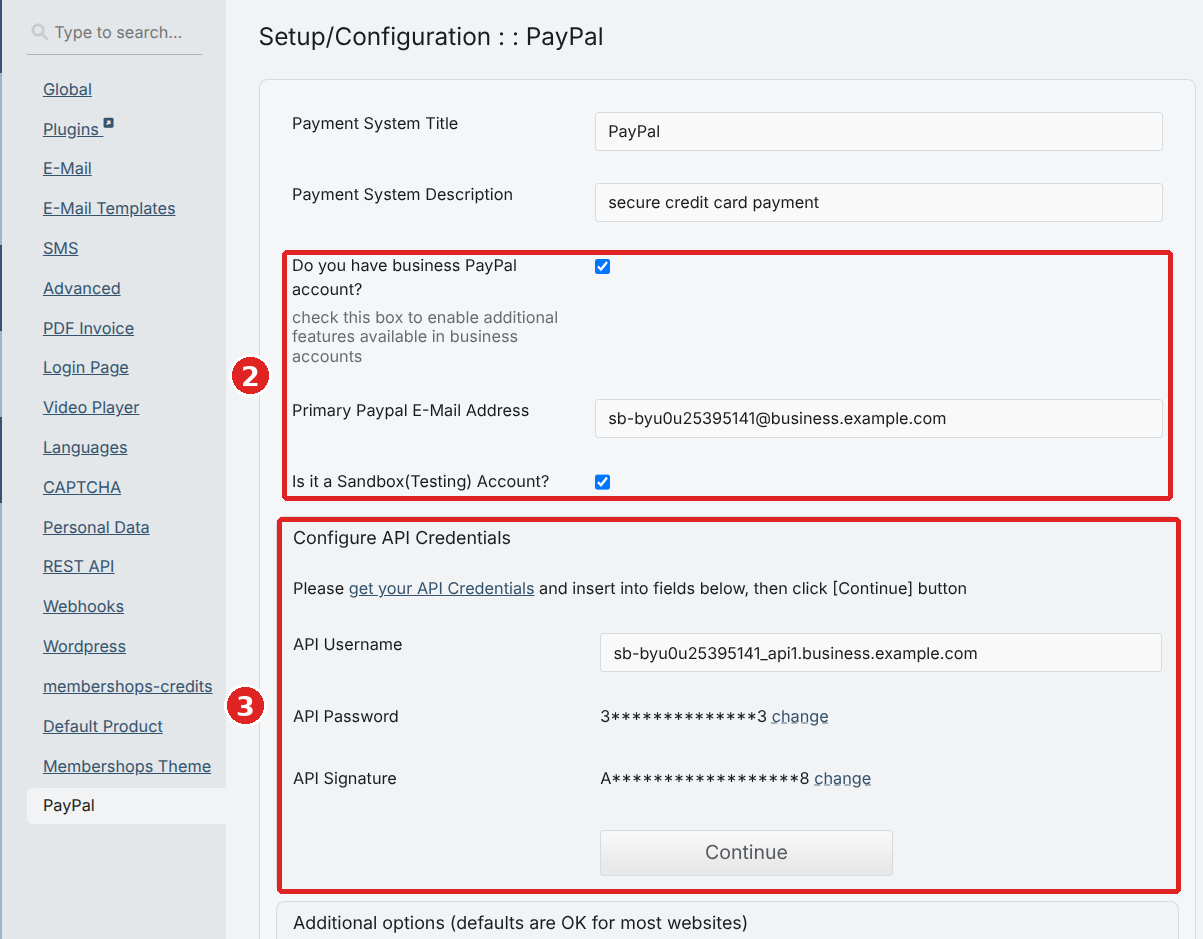
- After activating, open the PayPal settings: Configuration → Setup/Configuration → PayPal.
- Fill in the top of the page:
- Payment System Title: what customers see at checkout, for example
PayPal. - Payment System Description: a short line under it, for example
Secure credit card payment. - Do you have business PayPal account?: tick it.
- Primary PayPal E-Mail Address: the main email address of your PayPal Business account. It must be exactly the same as in PayPal.
- Is it a Sandbox (Testing) Account?: leave it unticked for real payments. Tick it only while testing with a PayPal sandbox account.
- Payment System Title: what customers see at checkout, for example
- Leave this page open. The next part, Configure API Credentials, asks for three details from PayPal: API Username, API Password and API Signature.
3. Get your API details from PayPal
- In a second browser tab, log in to your PayPal Business account.
- Open Account settings (the gear or your name, top right).
- Under Account access, find API access and click Update.
- Under NVP/SOAP API integration (Classic), click Manage API credentials.
- Choose Request API signature and agree. PayPal shows three values: API username, API password and Signature.
Keep these private
Anyone with these three values can use your PayPal account through the API. Don't email them or share them. You can remove them in PayPal at any time and create new ones.
4. Paste them into aMember
- Go back to the aMember tab.
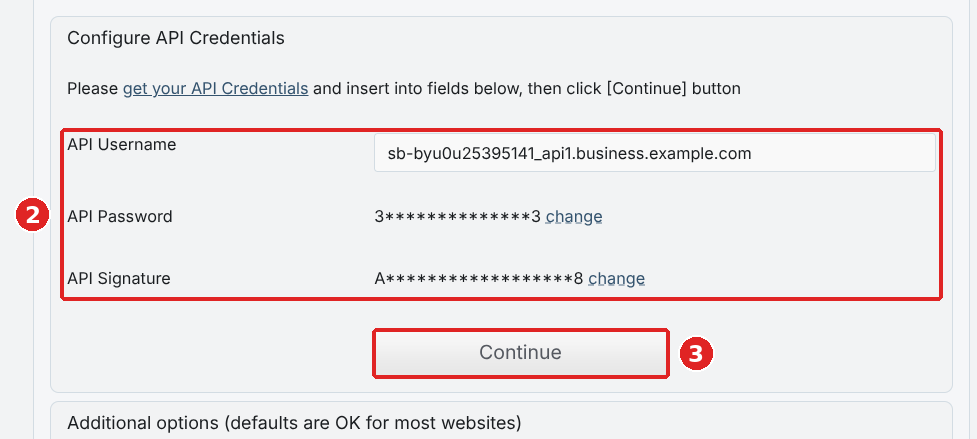
- Paste each value into its field: API Username, API Password and API Signature.
- Click Continue. aMember checks the details with PayPal and fills in Your Merchant ID by itself.
- Leave Additional options as they are (the defaults suit most stores) and save.
About IPN (payment notifications)
PayPal tells your store about each payment through IPN (Instant Payment Notifications). The aMember settings page shows your store's IPN address on the right; it looks like https://your-domain.com/members/payment/paypal/ipn.
You only need to make sure IPN is switched on in your PayPal account. If it's already on, it doesn't matter which address is entered there: aMember tells PayPal to use the right one for each payment. To check, search PayPal's help for "Instant Payment Notification settings".
For aMember's own instructions, see the aMember PayPal guide.
Check it worked
Make a test purchase, as at the end of the video: open a plan's sign-up page, pay with PayPal, and you should come back to your store's dashboard with the plan shown as active. The payment also appears in aMember under the customer. See Test your store as a customer.
Testing without real money
The video uses a PayPal sandbox account, which is a test account from PayPal's developer site, so no real money moves. To do the same, create sandbox accounts at developer.paypal.com, tick Is it a Sandbox (Testing) Account? in aMember and use the sandbox API details. When you're done, untick it and put your real API details back.
If something goes wrong
- aMember shows an error after Continue: one of the three API values is wrong or has a space at the start or end. Copy them again from PayPal.
- The payment went through, but the customer didn't get access: IPN may be switched off in your PayPal account. Switch it on.
- PayPal shows an error at checkout: check the PayPal email in aMember. It must be the primary email of a Business account.
- Customers see PayPal sandbox pages: untick Is it a Sandbox (Testing) Account? and use your real API details.