
File manager
Add, replace, rename or delete files inside a product that's already published, without uploading it again.
The file manager lets you work on a product's files directly, the way you would in a folder on your computer. For example, you can add your own bonus PDF to a product or replace an outdated file.
Open it
- In the dashboard, open the product (Products → All products → click the title).
- Open the File Manager tab.
The four folders
Every product has the same four folders:
| Folder | What's in it | Change it? |
|---|---|---|
| files | The product itself: everything that was in the zip. This is what customers download. | Yes. Add, replace or delete files here. |
| images | The pictures in the product's gallery | Better through the Product gallery tab |
| original | A backup of the zip as it was uploaded | No. Leave it as a safety copy. |
| preview | The preview files customers see | No. Regenerate the preview instead. |
Common tasks
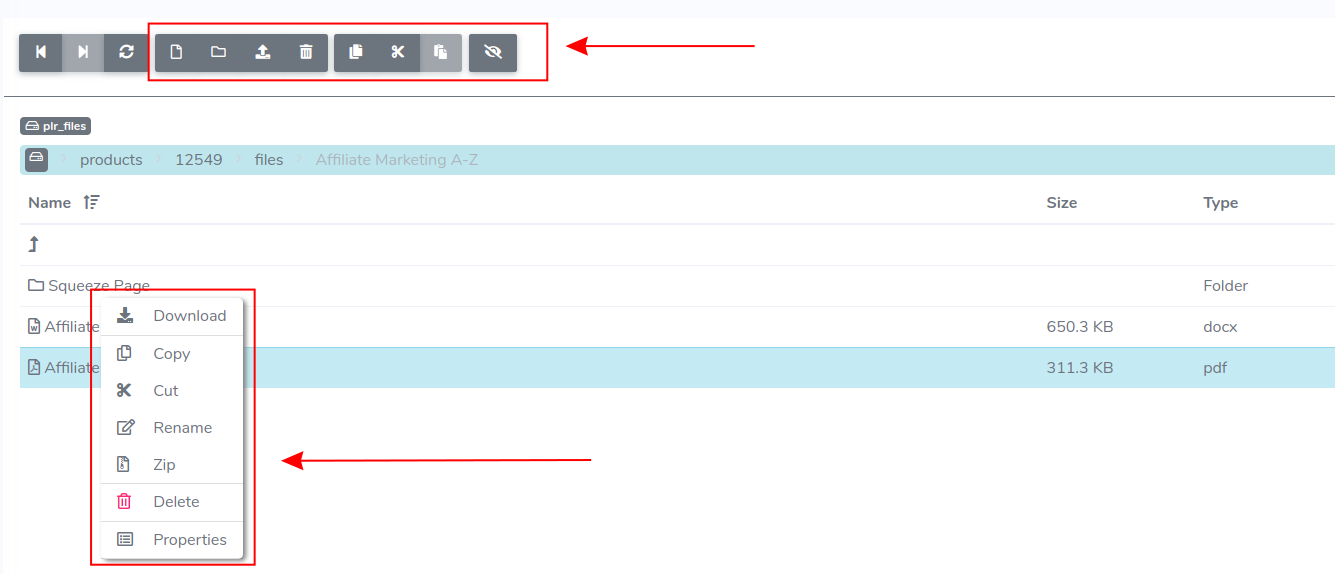
- Add a file: open the files folder and use the upload button in the toolbar.
- Delete a file: right-click it and choose Delete.
- Rename a file: right-click it and choose Rename.
- Download a file to check it: right-click it and choose Download.
The toolbar and right-click menu also offer copy, cut, paste, new folder, zip and properties.
After changing files
If you changed files that appear in the preview or the sales page, regenerate them in the Preview Creator and HTML Extractor tabs. See Previews and sales pages.
Only edit what the license allows
For the included products, change files only where the product's terms allow it (for example "Can modify/change the main product" for PLR products). See Product terms.