
Images and eCovers
Add pictures and videos to a product, crop and edit them, remove backgrounds, sharpen them, and turn flat covers into 3D eCovers.
The product gallery
Every product has a gallery: its cover (the main image) plus any other pictures and videos. The main image is shown in lists and at the top of the product page.
- In the dashboard, open the product (Products → All products → click the title).
- Open the Product Gallery tab.
Add a picture: click Add image, then upload one from your computer, choose one from the product's own files, or paste the address of an image online.
Add a video: click Add video, then upload one or choose one from the product's files.
Reorder: drag the pictures by the handle at their bottom right. The first one with a tick is the main image.
Describe a picture: click the pencil icon and fill in the Image title and Image alt text. Alt text describes the picture for people using screen readers, and helps search engines.
The image editor
- In the Product Gallery tab, click on any picture. It opens larger in a popup.
- Click Edit at the bottom right. The image editor opens.
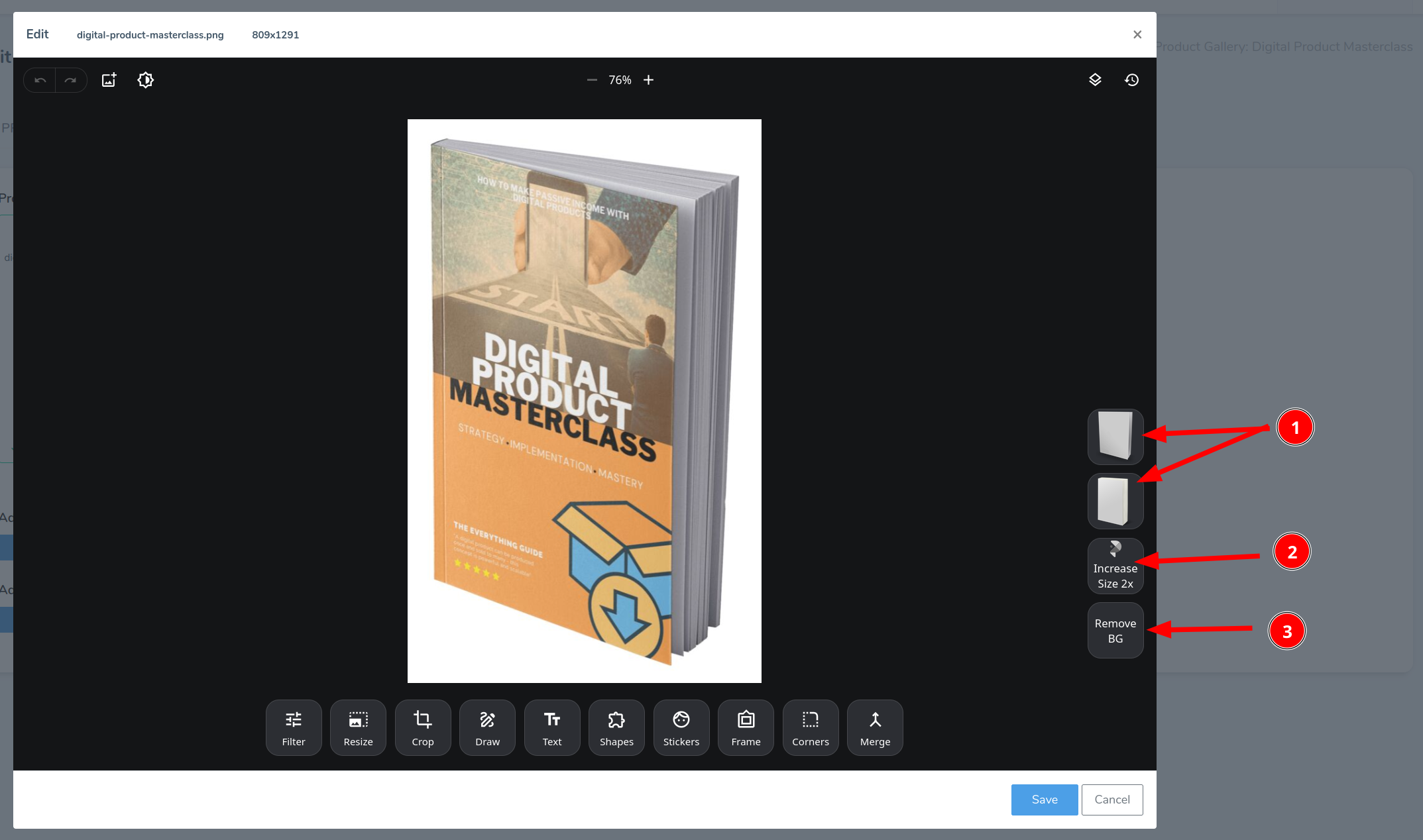
The one-click buttons on the right:
- 3D eCover (the two book-shaped icons, no label): turns a flat cover into a 3D book. Each icon gives a different angle.
- Increase Size 2x: doubles the image size and sharpens it, so small or blurry covers look crisp.
- Remove BG: removes the background, leaving the cover on a transparent background.
These work straight away. They don't need the PRO package or an API key.
The tools along the bottom: Filter, Resize, Crop, Draw, Text, Shapes, Stickers, Frame, Corners and Merge. At the top you'll find undo and redo, zoom, and the history of your changes.
When you're happy, click Save. Cancel closes the editor without changing the image.
The eCover Creator
The eCover Creator turns a flat cover into a 3D box, book or other shape. Open it from Tools → eCover Creator in the dashboard, choose one of the models, and add your cover.
Tips for good covers
- Use the same style of 3D cover across a listing page; it makes your store look tidy.
- Keep the main image tall (portrait), like a book cover. Most layouts are made for that shape.
- Change covers only where the product's terms allow it ("Can modify/change the graphics and ecover"). See Product terms.