
Credits and credit packs
Credits let customers buy single products without a membership. They buy a credit pack, add products to their cart and pay with credits at checkout.
Credits work like a prepaid balance in your store. A customer buys a pack of credits, then spends them on the products they want. It's the "shopping cart" way of selling, and it works alongside memberships. See Ways to sell.
How it works for your customer
- They buy a credit pack at
your-domain.com/members/signup/credits. The credits go into their account. - They shop. They browse your store and add the products they want to their cart.
- They pay with credits. On the checkout page, the products' prices are taken from their credit balance.
- They download. The products they bought appear on their Downloads page, where they can download them.
Left-over credits never expire
Credits that aren't spent stay in the customer's account for later. They don't expire. For example, with 1 credit = $1, a customer who buys 20 credits and then a $15 product keeps 5 credits to spend another time.
Credits aren't refundable, unless you choose to refund them. If you do, see Add or remove a customer's credits.
Your credit packs
Your store comes with two credit packs ready to sell: 100 credits and 20 credits. In aMember they're products in the Credits category, next to your membership plans, so you change their price or name the same way.
- Log in to aMember (
your-domain.com/members/admin). - Click Products → Manage Products.
- Open the credit pack, change the title or price, and click Save.
The number of credits a pack gives is set on the pack itself: open it and scroll down to Additional → Number of Credits.
To add another pack (for example 50 credits):
- In Manage Products, click New Product.
- Title: for example "50 Credits". Product Categories: choose Credits.
- Set the First Price and leave Rebill Times on No more charges.
- Under Additional, enter the Number of Credits, for example
50. - Click Save.
Set a product's price in credits
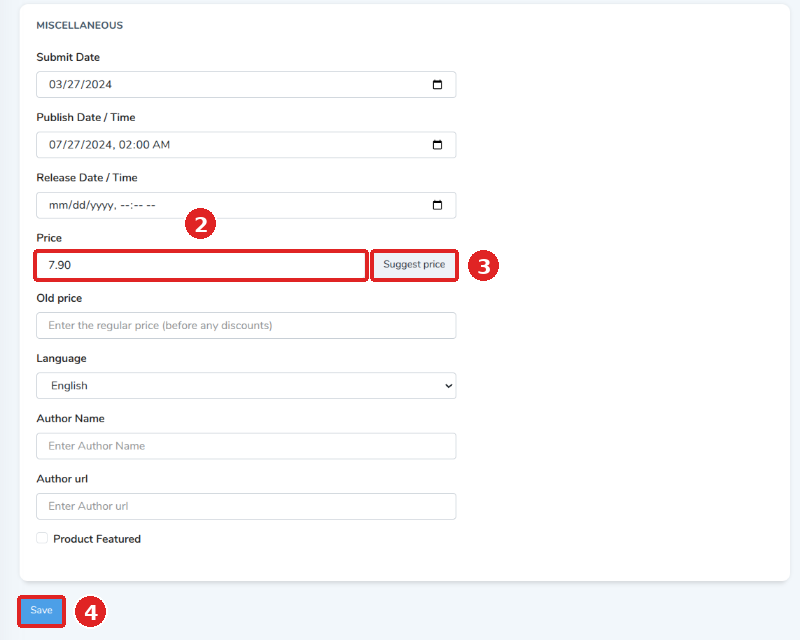
- In the MemberShops dashboard, open Products → All products and click the product.
- Under Miscellaneous, enter the Price in credits.
- Click Suggest price if you'd like a suggestion. It's worked out from the product's contents: the number of files, pages and words, and the length of any audio and video.
- Click Save at the bottom of the page.
All 12,000+ products already have a price. To change many at once, see Find, filter and bulk-edit products.
Give or take away credits by hand
You can add credits to a customer's balance yourself, for example as a gift or to fix a problem. See Add or remove a customer's credits.
Check it worked
As a test customer, buy the 20-credit pack. Add a product to your cart and pay with credits at checkout. Your balance should go down by the product's price, and the product should appear on your Downloads page. See Test your store as a customer.