Layout recipes
Copy-and-paste changes for your product page layout: a vertical gallery, custom icons and titles, hiding the price, a preview popup and moving the badges.
Before you start: You know how to open a layout's Edit code tab. See Product page layouts.
Each recipe is a small change in a layout's Edit code tab (Settings → Layout → pencil icon → Edit code). Pieces like <x-product-gallery /> are the layout's building blocks; you change them by adding settings inside them.
Work on a copy
Add a new layout first and try recipes there. See Product page layouts.
Vertical image gallery
By default the thumbnails under the main image run across. To put them down the side:
- Open the Product details layout area and the layout you use.
- In Edit code, find
<x-product-gallery … />. - Set
thumbnails-orientation="vertical"andthumbnails-position="left"(or"right"):
<x-product-gallery thumbnails-orientation="vertical" thumbnails-position="left" show-arrows="true" />
- Save and open a product page to check.
| Setting | Values |
|---|---|
thumbnails-orientation |
horizontal or vertical |
thumbnails-position |
top, bottom, left or right |
show-arrows |
true or false (arrows to move between images) |

Your own icon and title on product information
Five building blocks show product information with an icon and a title:
| Building block | Shows |
|---|---|
<x-product-package-contains /> |
What's in the package |
<x-product-meta /> |
License, terms, dates, size and price |
<x-product-categories /> |
Categories |
<x-product-niches /> |
Niches |
<x-product-package-details /> |
File counts, pages and words |
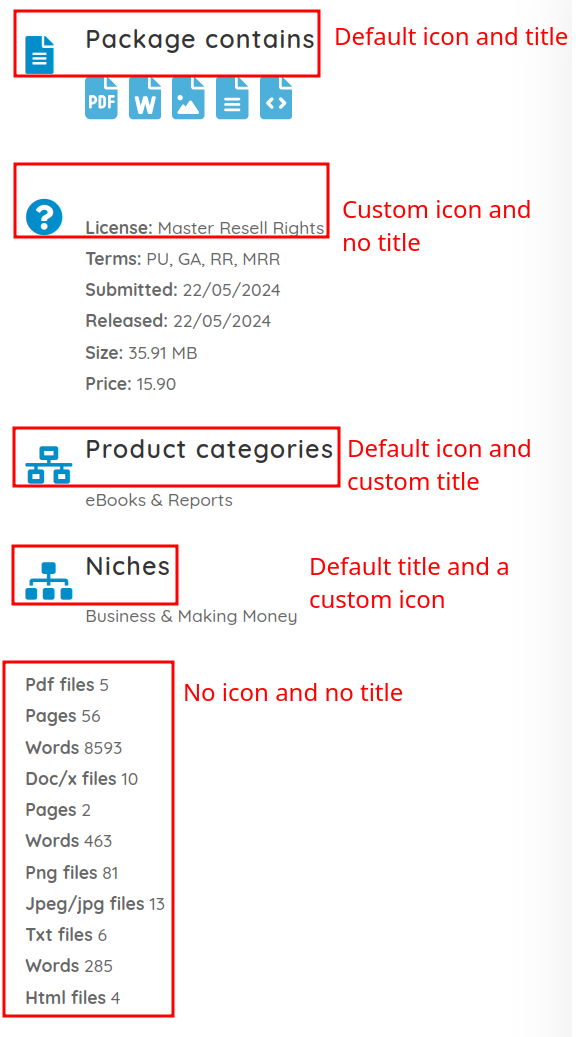
Give any of them your own title and icon. Icons must be Font Awesome 5 icons: find one at fontawesome.com/v5/search and copy its class name (for example fas fa-question-circle).
<x-product-meta title="Meta information" icon="fas fa-question-circle" />
To show no title or icon, give an empty value. Leaving a setting out shows the default.
<x-product-meta title="" icon="" />
Hide the price from the product information
With the shopping cart on, the price shows at the top of the product page and again in the product information. To remove the second one:
<x-product-meta display-price="false" />
To hide the price everywhere on the product page, untick it in the Visible information tab instead.
Show the preview in a popup
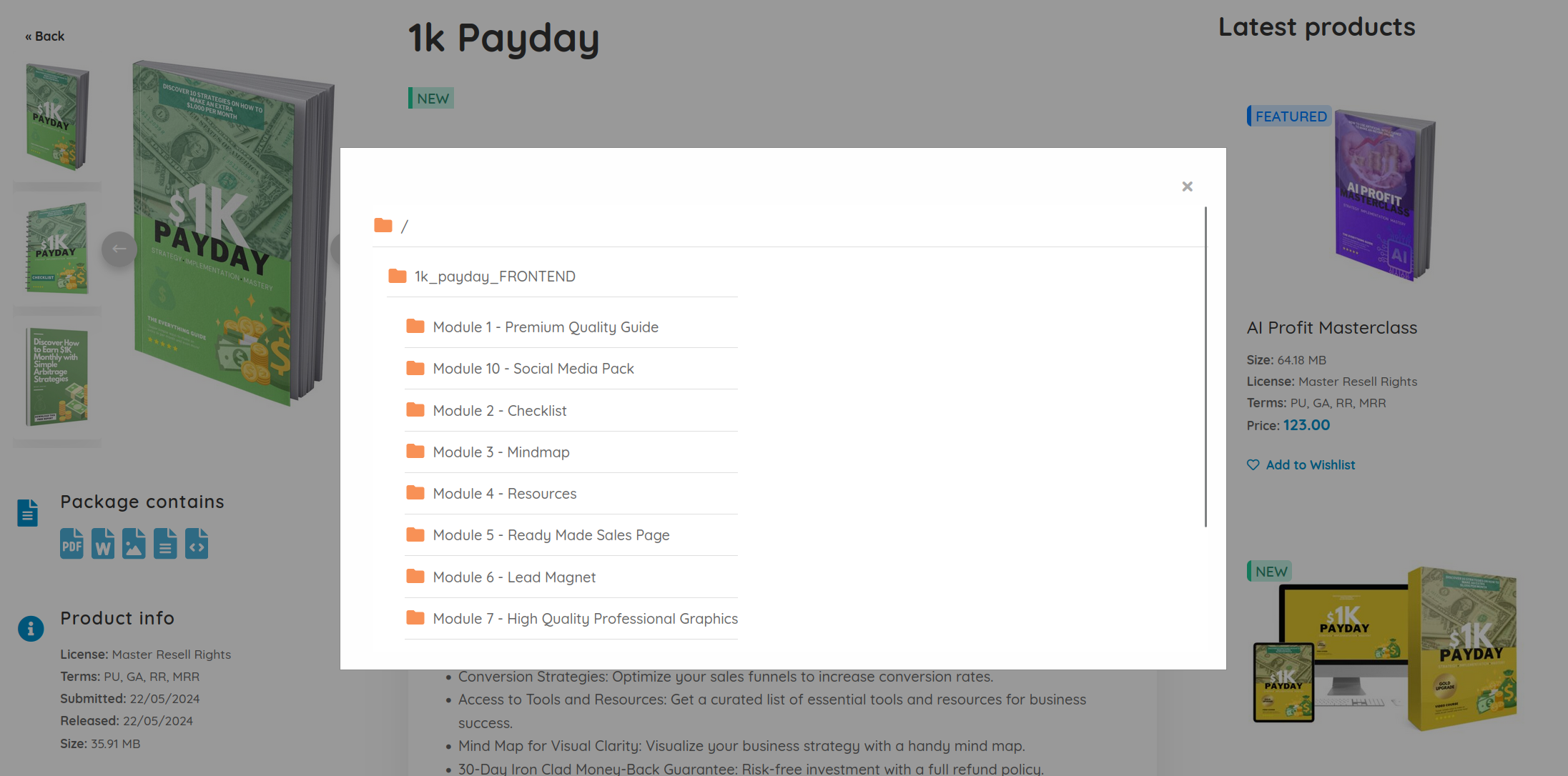
By default the preview is part of the page. To open it in a popup instead:
<x-product-preview-panel display-mode="modal" />
Customers close the popup with the × or by clicking outside it.
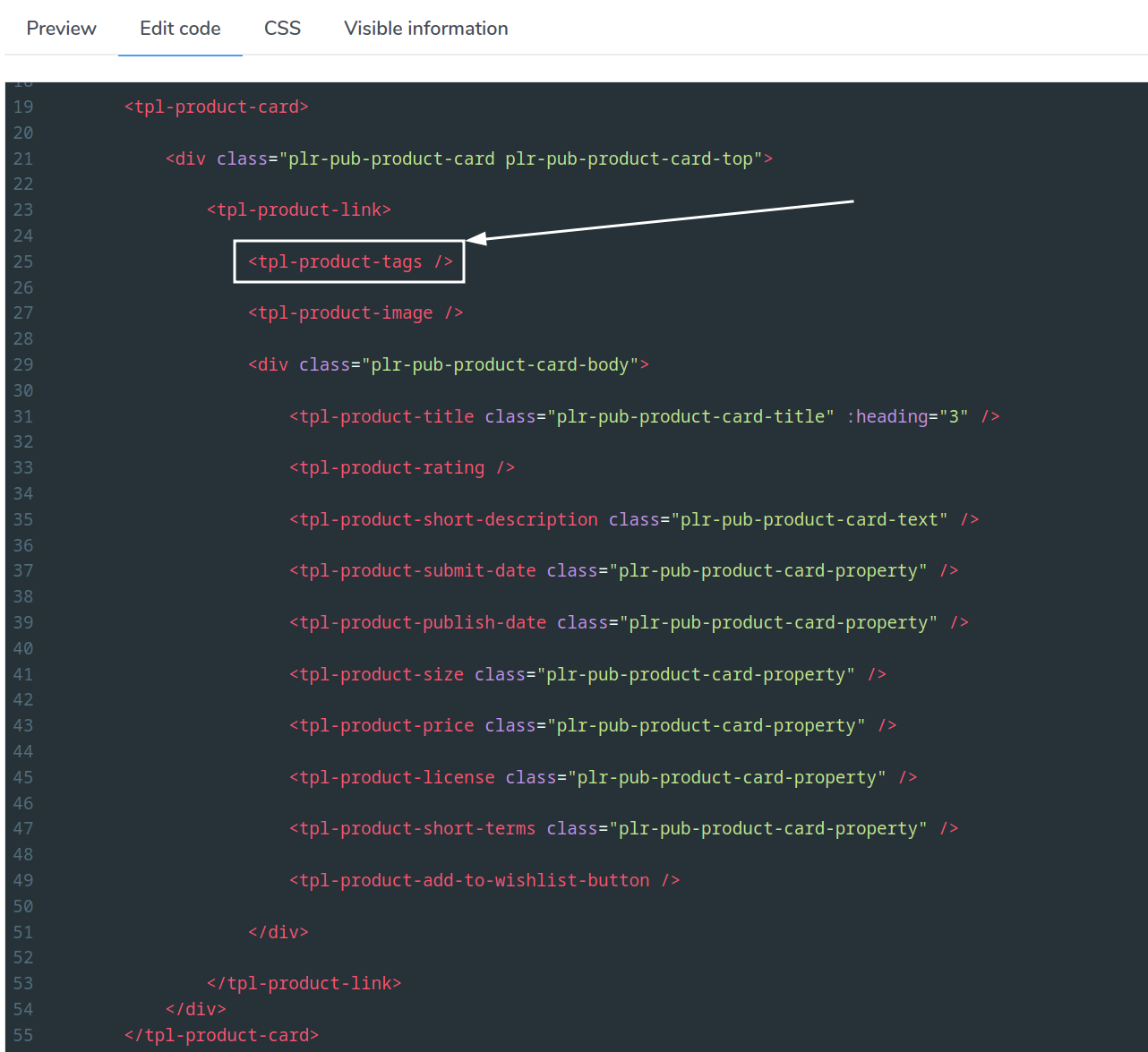
Move the Featured, New and Sale badges
Badges appear above the product title. For a layout with the image on top, you may prefer them above the image: in Edit code, cut the badges' building block and paste it just above the product image's building block, then save.